Comparison
Excel chart in WinCC runtime: static image or live data link
Short answer
WinCC runtime never reads an Excel workbook: render the chart to a JPEG or PNG and refresh it with a cyclic script and a flag file, or license WinCC DataMonitor so Excel reads live process values, logging tags and alarms through the Excel Workbook Wizard. Choose the image route when the chart must appear on the runtime picture.
On this page
- Can WinCC runtime open an Excel chart file directly?
- Which method fits: a static image or a live data link?
- How do I get an Excel chart onto a runtime picture?
- How fast does the static image update, and what sets that interval?
- How do I get live WinCC values into Excel instead?
- Which WinCC products does each route run on?
- Why does the image not refresh on the screen even though the script runs?
- Questions asked
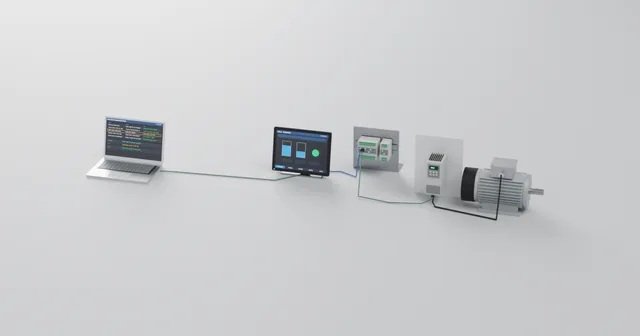
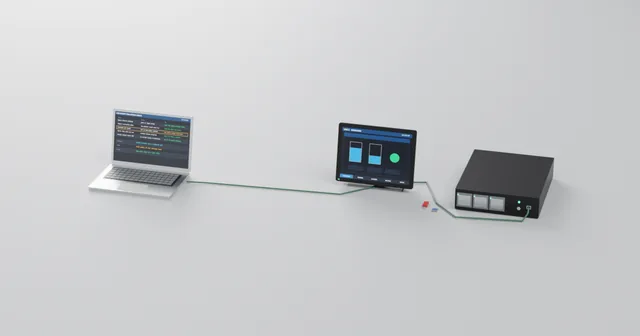
WinCC never opens the workbook: runtime cannot read an .xlsx chart, so you have two working paths. Render the chart to an image and let a cyclic script with a flag file refresh it on the picture, or reverse the direction and license WinCC DataMonitor so Excel reads live process values, logging tags and alarms from the runtime. This article compares both, works out the refresh arithmetic for the image route and lists what each one needs installed and licensed.
Can WinCC runtime open an Excel chart file directly? #
No. WinCC runtime has no reader for .xlsx files and cannot render an Excel chart object, so the chart never reaches the screen as a workbook: you either hand it a rendered image file, or you invert the architecture and let Excel pull live values from WinCC.
What the runtime displays is defined object by object. The Graphic I/O field in WinCC Runtime Professional, for example, displays and selects graphic files from a graphics list, not workbook sheets, and it carries no chart engine. Everything Excel-specific, from axis formatting to series colours and the legend, survives only if it is baked into the rendered image before WinCC sees it. That is why the real question is never which import filter to use, but who renders the chart and who refreshes it.
Which method fits: a static image or a live data link? #
If the operator only needs the chart to look current within about a minute, export it as an image and refresh that image with a cyclic script; if the values must change live in front of them, license WinCC DataMonitor and let Excel pull the runtime data instead.
Both routes keep WinCC out of the workbook: neither one reads the .xlsx. The difference is who renders, and where the chart ends up living.
| Decision point | Static image on the runtime picture | Live workbook via DataMonitor |
|---|---|---|
| What moves | a rendered JPEG or PNG snapshot, on your script trigger | tag values, logging tags and alarms, at each workbook refresh |
| Chart appears on the WinCC picture | yes, the only route of the two that does | no; Excel on a client PC is the display |
| WinCC side | Graphic I/O field plus a cyclic script and a flag file | DataMonitor license on the server computer, one for each DataMonitor client |
| Excel side | export the chart as a picture and write a flag file | Microsoft Office on the client, plus the Excel Workbook Wizard add-in |
| Who reads the .xlsx | nobody | nobody; values come from the runtime, not from Excel |
| Fits | report graphics and snapshots that may lag one cycle | online analysis and calculations that need current values |
Decision: when the requirement reads "show my Excel chart on the HMI screen", only the image route does that, and the workbook route is the wrong tool for it. When the requirement reads "operators need current numbers and a chart they can filter", the image route will only ever show a snapshot, and the workbook route is the honest one.
One safety note: both routes are display and reporting paths. Keep operator actions and any protective function in the PLC logic and the runtime's own controlled objects, never on an image file or a spreadsheet refresh.
How do I get an Excel chart onto a runtime picture? #
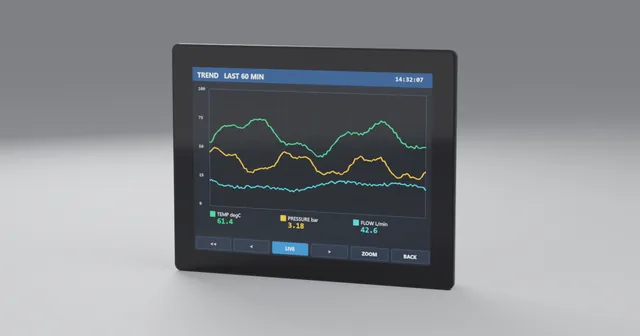
Excel owns three steps and WinCC owns three: export the chart as a picture, drop it in a transfer folder with a flag file, and let a cyclic WinCC script move it into the pictures directory that the Graphic I/O field on your screen points at.
- In Excel, select the chart and export it as a JPG or PNG, sized to the pixel dimensions of the Graphic I/O field so no scaling artefacts appear.
- Write the file to a transfer folder both sides can reach, for example
C:\HmiTransfer\on the runtime PC, and create the empty flag filetransfer.txtonly after the export has finished, so the script never copies a half-written image. - In WinCC, attach a script to a cyclic timer trigger; the scripting documentation lists timer triggers, cyclic and acyclic, among the standard trigger types.
- The script checks for the flag, copies the image into the pictures directory and clears the flag:
Dim fso, strFlag, strSrc, strDst
strFlag = "C:\HmiTransfer\transfer.txt"     ' example path
strSrc  = "C:\HmiTransfer\chart.jpg"        ' example path
strDst  = "C:\HmiRuntime\Pictures\chart.jpg" ' example path
Set fso = CreateObject("Scripting.FileSystemObject")
If fso.FileExists(strFlag) Then
  fso.CopyFile strSrc, strDst, True
  fso.DeleteFile strFlag
  fso.DeleteFile strSrc
End If
Set fso = Nothing
- Point the Graphic I/O field at the destination file name and run the test below.
Displaying picture files on a runtime picture works the same way as showing an animated GIF in WinCC Flexible PC runtime, where the file is drawn by a graphic object rather than imported into the project. The flag-file mechanism here is a long-established convention: one small empty file tells the second application that new data is waiting, and deleting it confirms the handover.
The test that proves the loop: change a cell the chart plots, rerun the export, and within one trigger interval the picture shows the new pixels while transfer.txt and the source image are gone from the transfer folder.
How fast does the static image update, and what sets that interval? #
You set the interval, and with the example 60 s cyclic trigger a chart saved in Excel appears on the screen between 0 and 61 s later, about 30 s on average.
Worked example, with example paths and sizes. The cyclic trigger fires every 60 000 ms. When the flag is present, the script costs one file-existence test, one copy of a typical 500 kB image to a local disk, well under 1 s, and two deletes that are negligible. Worst case: Excel writes the flag just after a trigger fires, so the change waits a full interval plus about 1 s of script time, roughly 61 s from saving to screen. Best case: the flag lands just before a trigger, and the delay is about 1 s. Average delay across a cycle is (0 + 60) / 2 = 30 s. Decision: for a report or KPI chart, a 60 s cycle is a sound default; shorten it only if the picture's other scripts stay light, because the cost grows with the polling frequency, not with the transfer itself. Keeping the per-scan work to one file check matters: heavy tag reads inside cyclic scripts are what drag a screen down, the same effect that makes a VBScript table screen take 20 seconds to open.
How do I get live WinCC values into Excel instead? #
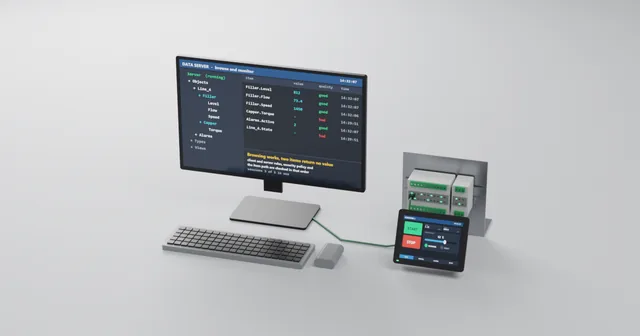
WinCC DataMonitor turns the direction around: the server exposes process values, logging tags and alarms, and an Excel client running the Excel Workbook Wizard add-in reads them into worksheet cells, where a chart plots them as live data.
The documented prerequisites are explicit. A WinCC DataMonitor license is required on the server computer for each DataMonitor client. Microsoft Office is required on the client for the Excel Workbook feature, and the Excel Workbook Wizard installs on the client PC as an add-on from the DataMonitor setup. The wizard builds the workbook and writes its own worksheet functions, with the tag-reading function appearing in a cell as a formula of the form DM_GetTagValue, evaluated by the add-in each time the workbook refreshes on the cadence configured in the wizard. You can edit and save the resulting workbook like any other.
If the workbook reads alarms but comes back empty, the fix path is covered step by step in the companion article on WinCC DataMonitor Excel Workbook alarm reading failures. And if you only need chart values in a reporting tool on a schedule rather than a live link, pushing tags to a database is the other documented direction, compared in the article on connecting WinCC to an external database with direct options.
Which WinCC products does each route run on? #
The image route needs a Windows PC runtime with a scripting engine, file access to the transfer folder and a Graphic I/O field; the workbook route is documented for WinCC Runtime Professional with a DataMonitor license on the server computer.
WinCC documents Visual Basic Script, ANSI-C and VBA as its scripting languages, with cyclic timer triggers as a standard trigger type, so the transfer script and its trigger are at home on any Windows-based runtime that offers scripting. Panel-class operator terminals have no Windows scripting host and no network file system inside runtime, so the flag-file transfer does not port to them. On a panel, build the chart with the panel's own trend objects, or reach the same data through the browser-based DataMonitor clients, whose WebNavigator function set covers process screens and Excel workbooks.
Why does the image not refresh on the screen even though the script runs? #
In practice the script ran but the picture did not redraw: rewriting the image under the same file name is not a signal the Graphic I/O field acts on, so the screen keeps the old pixels.
Fix it by making each cycle visibly different to the object. Alternate between two file names, chart1.jpg and chart2.jpg, so every transfer changes the name the object displays, or pulse a tag that the object's display is bound to. Order the script so the flag is deleted only after the copy succeeds, so a failed copy retries on the next trigger instead of losing the update silently. Check folder permissions from both the Excel account and the runtime account, because a silent write failure means the flag never appears at all. Scripted refresh and visibility problems on WinCC pictures share this pattern; the same failure shows up when a WinCC faceplate script does not auto-refresh.
Once the name changes each cycle, the test from the build section proves the whole chain: edit the chart in Excel, rerun the export, and the new pixels land on the screen within one trigger interval.
Questions asked
Does the image transfer method work on a Comfort Panel?
No. The method relies on a Windows scripting host, a local file system and network file access, which a panel-class terminal does not offer in runtime. On a panel, build the chart with the panel's own trend objects, or view the data through a browser-based DataMonitor client instead of copying image files.
Does Excel need to stay open for the static image route?
No. Excel only participates at export time: once the picture file and the flag file are written, Excel can be closed and the refresh loop runs entirely inside the WinCC runtime script. The DataMonitor workbook route is different, because its values update only while Excel is open on the client.
Can runtime read the numbers behind the chart instead of a picture?
Not from the workbook file itself. Get the values into WinCC first, as tags over a driver or into a database that both sides read, then plot them with runtime trend or table objects. Pushing tags to a database is the standard route when a reporting tool outside runtime needs the same data.
How large should the exported chart image be?
Match the export to the pixel size of the Graphic I/O field on the screen, so a 640 by 480 pixel field gets a 640 by 480 pixel export. A mismatch costs only scaling artefacts, not function, because the object scales whatever file it is given.