Troubleshooting
Weintek MT8150EX will not communicate with a Siemens S7-1200
Short answer
The link fails because one side does not match the addressing mode the project uses: hand-typed operands need the absolute-addressing driver, while symbolic access needs the tags and DBs imported from the compiled TIA Portal project. Set both sides per the matching Weintek S7-1200 connection guide, then rerun the M6.2 button and M6.0 lamp loop: no bit change points at the connection, a changed command bit with a dead lamp bit points at the PLC logic.
On this page
Your panel is not the place to start. When a Weintek MT8150EX at 192.168.0.4 cannot move a single test bit on a Siemens 1215C, the cause is nearly always a mismatch between the EasyBuilder Pro driver and the way the variables were made: hand-typed operands work only with the absolute-addressing driver, while symbolic access needs tags and DBs imported from the compiled TIA Portal project. Set both sides against Weintek's PLC Connection Guide for the mode you actually have, then rerun the M6.2 button and M6.0 lamp loop. The result splits the fault cleanly: no bit change means the connection, a changed command bit with a dead lamp bit means the PLC logic.
Identify the addressing mode first #
Weintek publishes separate connection guides for this CPU family: absolute addressing for the S7-1200/S7-1500 over Ethernet, symbolic addressing for the S7-1200, and the S7CommPlus symbolic variant. Each prescribes different settings in TIA Portal and in EasyBuilder Pro, so applying one while the project is configured for the other produces exactly your symptom — a reachable panel, objects that compile, and no data movement.
Open the PLC device settings in EasyBuilder Pro and read which driver the project carries. If the variables were typed by hand directly in the panel, the usual meaning of "created on the HMI", the project is absolute addressing, and every operand must match the PLC program exactly, including the bit position: the button writes one memory bit and the HMI reads a different one, and a swapped bit number fails silently. If the driver is symbolic, the tag names and DB definitions must come from an import, and hand-typed names never resolve. Do not switch modes to chase the fault — a driver change without re-pointing every variable turns one problem into two.
Apply the connection guide for that mode #
Both guides were written for this pairing, and both sides must match the same guide. The same discipline — the right guide, its settings on both ends, then a minimal test — is what resolves a Weintek HMI that will not connect to a Mitsubishi iQ-R CPU when the pairing changes.
- Absolute addressing: create the PLC program and tags in TIA Portal and download them to the CPU, take TIA Portal offline, then let EasyBuilder Pro connect to the CPU and read the tag data. In the CPU's protection settings, permit PUT/GET communication from remote partners — an S7-1200 that refuses remote-partner access returns nothing to this driver.
- Symbolic addressing: same TIA Portal steps — create the program and tags, download, go offline — then EasyBuilder Pro connects and pulls the tag data. The S7CommPlus symbolic variant additionally requires the Remote Password Setting enabled in EasyBuilder Pro's device settings, with the CPU's access password entered.
- In either mode, the CPU must be in RUN with the program downloaded before any test means anything.
Retesting the M6.2 to M6.0 lamp loop at 192.168.0.4 #
The inputs, all from your own setup:
- Panel address 192.168.0.4, from the HMI's network configuration.
- Command operand M6.2 — the bit the HMI button writes — and lamp operand M6.0 — the bit the PLC test rung drives and the HMI reads back.
- CPU: a Siemens 1215C with the minimal program downloaded, in RUN, watched through an online watch table in TIA Portal.
The rule: the loop passes only when both directions are proven — the write lands in the CPU and the read returns the result to the panel. The test rung is M6.0 := M6.2, so the arithmetic is one bit each way:
| Step | Action | Expected state in the CPU |
|---|---|---|
| 1 | Press the HMI button | Command bit M6.2 = 1 |
| 2 | Test rung evaluates | Lamp bit M6.0 = 1 |
| 3 | HMI reads the lamp bit | Lamp ON at the panel |
Decision, read from the watch table:
- The command bit never changes: the write path is dead. Stop here — the fault is driver selection, the CPU's remote-access protection, or the subnet, and no logic edit will show up until the write lands.
- The command bit is 1 but the lamp bit stays 0: the write path is proven; the fault is in the PLC — program not downloaded, CPU not in RUN, or a typo in the rung operand.
- Both bits are 1 in the CPU but the panel lamp stays dark: the read side is at fault; in a symbolic project the usual cause is a name that was never imported.
- Both bits are 1 and the lamp is ON: communication is proven both ways — scale up to the real project.
Run this loop on a bench CPU or with the machine's outputs disabled: a test write into the live memory area can drive real logic.
When neither bit changes #
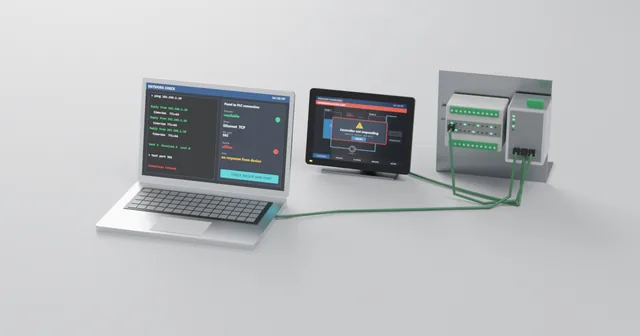
- From a laptop on the same switch, ping the panel at 192.168.0.4, then the CPU. A reply proves only that an address answers at the IP layer; the layers behind a link that pings but passes no data are worked through in When an HMI and PLC ping but will not communicate.
- Confirm the CPU holds an address in the panel's subnet, with the same mask and no duplicate address on the network.
- In EasyBuilder Pro, confirm the PLC driver matches the mode identified above and the connection settings point at the CPU's address.
- In TIA Portal, confirm the CPU's protection settings permit remote-partner access and that the CPU is in RUN.
- Rerun the loop. Only a passing loop proves the link — not a ping, not a compiled project, not a downloaded panel.
Questions asked
EasyBuilder Pro refuses the import and says the TIA Portal project must be compiled first. What do I do?
Compile the PLC station in TIA Portal, hardware and software, save the project, and run the tag import again. The import reads the compiled data, so an uncompiled project cannot supply tags or DB definitions. Until the import succeeds, a symbolic project has no valid variable source, and the panel sits with unresolved names while any operands you typed by hand only work when the driver is the absolute one.
Can I convert the project from symbolic to absolute addressing instead of re-importing?
Yes, Weintek documents that conversion. Change the PLC driver in EasyBuilder Pro's device settings from the symbolic entry to the absolute one, then replace or re-point every variable so each object carries an absolute operand such as a memory bit or a DB offset. Download the converted project to the panel on a bench and rerun the two-bit loop before you trust it on the machine.
Does TIA Portal have to stay open for the panel to run?
No. TIA Portal creates the program and supplies the tags for import, but at runtime the panel exchanges data with the CPU directly over Ethernet. Keep the two projects consistent, though: after a PLC download that renames or deletes tags, import them again, or symbolic reads will fail while absolute operands keep working only as long as their addresses did not move.
The panel pings fine from my laptop. Doesn't that rule out the network?
No. Ping proves only that an address answers at the IP layer. The S7 connection can still fail on the selected driver, tags that were never imported, or the CPU's remote-access protection. Treat ping as a prerequisite, not a result, and use the two-bit loop as the real proof, because it exercises the write and read paths that ping never touches.