Troubleshooting
Why a WinCC picture made for 1080p cannot fit a 4:3 workstation
Short answer
A 1920x1080 WinCC picture cannot fill a 1024x768 workstation: fitted to the 4:3 width it shows at 1024x576 and leaves 192 pixels unused, and no setting removes that geometry. Scale simple-object pictures in a picture window with Adapt Picture set to yes and a Scaling factor near 53. Any picture with a trend control or edge commands gets a duplicated, rearranged 4:3 picture instead.

On this page
- Why does a 1920x1080 WinCC picture not adapt on a 1024x768 workstation?
- How much of the picture actually fits a 4:3 screen?
- How do you scale the picture with a picture window?
- Which WinCC objects refuse to scale in a picture window?
- Can a script resize the picture instead?
- Should you rearrange or redraw the picture for the 4:3 workstation?
- What do you check before releasing both workstations?
- Questions asked
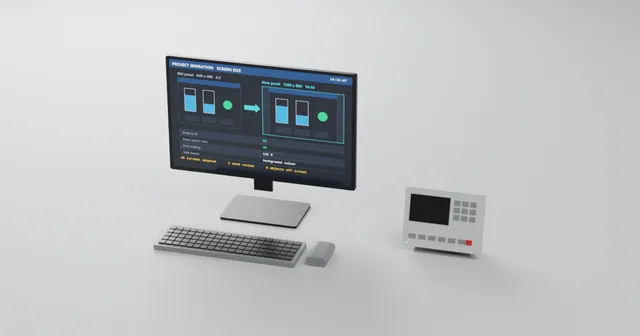
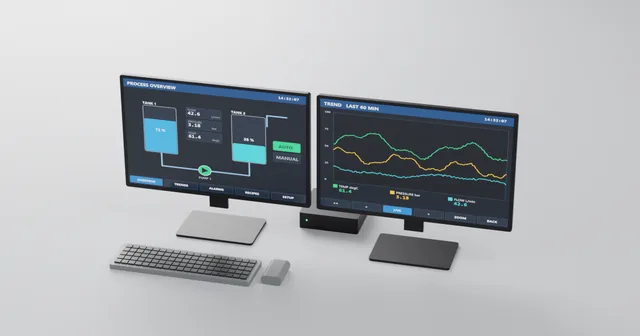
A 1920x1080 WinCC picture will never fill a 1024x768 workstation through one setting: the design is 16:9, the station is 4:3, and a uniform scale cannot satisfy both. Scale, letterbox or rearrange are the only outcomes, and what the picture contains decides which one you take. Simple-object pictures scale inside a picture window with Adapt Picture set to yes; anything with a trend control or edge-placed command buttons gets a duplicated, rearranged 4:3 picture. This page gives the arithmetic, the exact property names and the decision for each case.
Why does a 1920x1080 WinCC picture not adapt on a 1024x768 workstation? #
The picture does not adapt because the two resolutions have different aspect ratios: 1920 divided by 1080 gives 1.78 (16:9), while 1024 divided by 768 gives 1.33 (4:3), so no uniform scale fills both width and height.
The geometry decides the outcome before any property is touched. A proportional scale multiplies every width and every height by the same number, so a 16:9 picture stays 16:9 at any zoom; the 4:3 screen can either show it complete with bands or fill itself by cutting content. WinCC scales, it does not reflow: no engine moves and resizes individual objects to absorb the difference, which is what a web-style client does. An HMI built to rearrange itself for whatever screen it lands on is a different architecture, as described in why Ignition Perspective rearranges column layouts.
There is also a placement trap. The attributes that adapt a picture live on the picture window that hosts it, not on the picture itself. Open the picture directly, as a start picture or from a button, and no container applies any adaptation, which is why editing the picture's own properties changed nothing on the second station. The same container behavior sits behind why a WinCC picture window keeps objects at the old size.
How much of the picture actually fits a 4:3 screen? #
Fitted to the 1024-pixel width, the picture displays at 1024x576 and leaves a 192-pixel band unused; fitted to the 768-pixel height it needs 1365 pixels of width and clips about 341 pixels.
Worked example, design 1920x1080 displayed in a 1024x768 window:
- Width fit, the letterbox case: scale = 1024 / 1920 = 0.5333; displayed size = 1920 x 0.5333 = 1024 wide and 1080 x 0.5333 = 576 high; unused band = 768 - 576 = 192 pixels.
- Height fit, the clipping case: scale = 768 / 1080 = 0.7111; displayed width = 1920 x 0.7111 = 1365 pixels; clipped width = 1365 - 1024 = 341 pixels, cut at one edge or split across both depending on the anchor.
Those are the only two proportional outcomes. Fill both dimensions without bands and something must stretch: unequal horizontal and vertical factors turn circles into ellipses, and operators read pumps and tanks partly by shape. The width fit is the usable one; the height fit only survives where the clipped strip carries background that nobody operates. Judge the result by object positions, not by whether the background covers the screen.
How do you scale the picture with a picture window? #
Place the 16:9 picture inside a picture window, set Adapt Picture to yes, and work from the Scaling factor attribute, which sets the zoom for the picture displayed in that window; 100 is the default, 50 shrinks the display and 200 enlarges it.
Size the factor instead of guessing at runtime: 1024 / 1920 x 100 = 53.3, so a Scaling factor near 53 reproduces the width fit from the arithmetic above. At the default 100 the picture renders at its full 1920-pixel width and about 896 pixels of design width sit past the screen edge; at 50 it renders 960x540 and 64 pixels of width stay empty. Take the final factor from the runtime image rather than from the number: reducing a bitmap interpolates its pixels, so screenshots, logos and fine labels smear first.
On a WinCC V8 runtime the picture window also carries a picture scaling mode, which specifies how the window reacts to zooming when the runtime computer's resolution differs from the engineering resolution; check that attribute on the same property sheet before you trust the adapted result. For what the attribute does to screens that came from an older project, the mechanics continue in adapting a picture in WinCC 7.4 so migrated screens fit the new resolution.
Which WinCC objects refuse to scale in a picture window? #
Only simple objects follow the picture scaling; a control such as Trend-Control cannot be scaled this way and keeps the geometry configured in its own properties, so any picture containing it needs its own 4:3 arrangement.
Sort the picture's object list before touching a setting. Lines, circles, rectangles, text and plain operator buttons scale as a block with the picture. Windowed controls do not: the trend control in a scaled picture keeps the size it was given, and adaptation neither shrinks it nor grows it. Expect alarm lists, table and report controls to behave the same way, and prove each one on the bench before trusting adaptation on a mixed picture; the safe engineering assumption is that only simple objects scale.
In the rearranged picture you size the trend control directly for the 4:3 area and configure what it shows in that picture's own copy: its trend areas, pens and time range are properties of the control instance placed in that layout, so the 4:3 copy is where its geometry and content get set for the smaller station.
Can a script resize the picture instead? #
A script is the wrong tool here: it must reposition and resize every object from the screen size, keep fonts legible and the aspect-ratio decisions intact, and it still cannot scale the trend control, so it adds a maintenance burden without removing the one obstacle that blocks you.
The idea is real: a VB script can read the screen dimensions, and System.Drawing.Size was one route suggested for exactly this job, multiplying every coordinate by a calculated factor. What it cannot do is reflow. Overlaps, font legibility and the anchor decisions all land on you, a viewer-side fit option only zooms the rendered picture instead of moving anything, and the control limitation sits in the control, not in the script. Nobody hands over a working sample for this, so every future screen change becomes a fresh script test. Decision: keep scripting out of the resolution problem. The duplicated picture is deterministic, reviewable offline and survives the next engineer who opens the project.
Should you rearrange or redraw the picture for the 4:3 workstation? #
Rearrange a duplicate; do not redraw and do not force the scale. Copy the 16:9 picture, move and resize its objects for the 4:3 area, and leave the original untouched, because the copy keeps every proven tag connection and script and only the geometry changes.
Redrawing pays twice: every object is re-created, every dynamic is re-wired and everything is re-tested. The redraw urge usually starts after someone saw broken pixels in a scaled bitmap; the bitmap damage is real, but it argues for a native-resolution picture, not for starting over. Rearranging keeps the assets and moves them.
The decision per case:
| Second-station picture | Decision |
|---|---|
| Read-only overview, nothing operated | Width fit in a picture window, accept the letterbox band |
| Operator picture with commands near any edge | Rearranged 4:3 picture |
| Contains a trend control or any windowed control | Rearranged 4:3 picture, control sized in place |
| Bitmap-heavy graphics or fine logos | Rearranged picture at the station's native resolution |
| Both station types run the same process | Keep both pictures and route each station to its own |
One sentence per picture: if operators act on it, give 4:3 its own layout; if they only watch it, letterbox it.
What do you check before releasing both workstations? #
Verify both stations on the bench at each one's native resolution before either runs production: six checks, each with a pass condition readable on the screen, and any failed check sends the picture back to the rearrangement step rather than out to the line.
- Boundary. Every command object sits fully inside the display with margin; nothing needs a scroll to reach. A clipped alarm, trip or acknowledgment control fails the check outright, because an operator command that cannot be reached is a safety problem, not a cosmetic one.
- Proportions. Circles, tank outlines and equipment symbols keep their shape; an ellipse means the width and height factors differ.
- Simple objects. Labels, pipes and buttons follow the picture-window result without overlapping, and small text stays legible at the operator's viewing distance.
- Controls. The trend control renders at the size assigned in its own picture, its pens update, and it shows live values rather than a frozen frame.
- Image quality. Bitmaps and logos show no broken or smeared pixels at runtime size; anything that fails moves to the rearranged picture.
- Routing. Each station's startup picture is the layout drawn for it, and every button on that layout opens another picture of the same geometry.
Record the pass with the date and the project version so the next screen change begins from a known-good pair.
Questions asked
Why did my picture geometry change after compiling the OS?
From PCS 7 V8.2 and WinCC V7.4 onward, settings you make on OS pictures are not carried over when the OS is compiled. A picture you sized or arranged for the 1024x768 station can revert on the next compile, so reopen the picture after every compile and confirm its geometry before the station goes back into service.
Does Adapt Picture change tag connections or scripts?
No. Adapt Picture and the Scaling factor change how the picture is displayed, not what is configured in it: tag connections, scripts and dynamic dialogs stay exactly as engineered. That is why the scaled picture is functionally identical to the original, and why display problems and connection problems must be diagnosed separately.
How does each workstation open the picture built for it?
Set the startup picture of each station to the layout made for its resolution: the original on the 16:9 station and the rearranged variant on the 4:3 station. Then chain pictures of the same geometry together, so every button on a 16:9 picture opens another 16:9 picture and every button on the rearranged picture opens another rearranged one. A station then never lands on a layout drawn for the other screen.
Why not raise the 1024x768 workstation to a 16:9 resolution?
Because the panel is 4:3. A monitor whose native panel is 1024x768 maps any other mode onto that 4:3 pixel grid, so the same aspect-ratio conflict returns inside the display and text loses sharpness in the mapping. Run the station at its native resolution and solve the picture with a rearranged layout instead.