Troubleshooting
Why secured HMI buttons stop working after an OS update
Short answer
An OS update wipes the panel's stored runtime user administration, so protected buttons reject every touch while the identical project still runs in simulation. Selecting Overwrite password list in the transfer settings and downloading the application again restores the accounts and the buttons.
On this page
- Why do secured HMI buttons act like they have no event after an OS update?
- How do you separate a touch problem from an authorization problem?
- Why does the same project work in simulation but not on the panel?
- Which download option restores the protected buttons?
- What should you verify in the project's user administration before the download?
- Is overwriting the password list safe for panel accounts?
- How do you download and bench-test the panel safely?
- Questions asked
The buttons are not broken. On a 6-inch OP177 Touch panel running a WinCC flexible 2008 SP3 project, an operating system update followed by an application download can leave every security-protected button dead while unprotected controls keep working and the same project executes correctly in simulation. The update emptied the panel's stored runtime user administration, so no logged-in user carries the authorization those buttons require; the panel looks event-less because it refuses a protected action it cannot authorize. The correction in the reported case was one checkbox: select Overwrite password list in the transfer settings and download the application again. This article walks the diagnostic order — touch first, then events, then authorizations — and the controlled download that puts the accounts back.
Why do secured HMI buttons act like they have no event after an OS update? #
The buttons act as if they had no event because the operating system update wiped the panel's stored runtime user administration, so no logged-in user carries the authorization each button requires; the configured event is intact, and the panel only refuses to execute a protected action.
WinCC flexible treats a button's event and its security requirement as two independent parts of the configuration. The event fires only when the operator interaction is detected; the security requirement adds a second gate that checks the active user's authorizations before the action runs. When that gate cannot pass, the button gives exactly the symptom described: it behaves like a control with no event at all.
The trap is that saving and compiling the project, and configuring Runtime User Administration in the engineering software, both prepare the project side only. Neither step proves anything about the user list physically stored on the panel. The project's user administration and the panel's retained list are two separate states until a transfer setting or a login test shows they agree, and an OS update is exactly the event that separates them.
How do you separate a touch problem from an authorization problem? #
Operate an unprotected control before touching any settings: if it responds at every screen corner, touch detection and event execution are healthy and the fault is authorization, because recalibration only corrects displaced coordinates and never grants a user permission.
Work the checks in this order:
- Operate an existing unprotected control. It should respond and perform its action. If it does not, the fault is in touch response or general application execution, not in the password list.
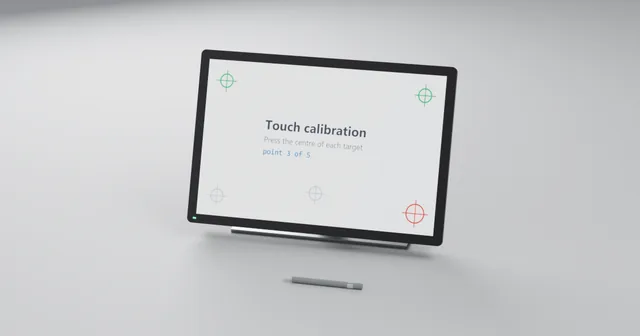
- Touch controls near the corners and edges of the screen. If the active area sits displaced from the visible control, recalibrate the touchscreen with the panel's documented procedure. On PC-based panel hardware the calibration data are stored in the operating system, so an OS update can clear them; on a dedicated panel, recalibration after an OS update is documented good practice. Calibration aligns coordinates; it does not authorize anybody.
- Log in deliberately with an account that exists in the project, then press the protected button. Logging out and in clears an old session from the test.
- Read the pattern below before editing any event.
| Observed result | What it means | Next check |
|---|---|---|
| Fails in simulation and on the panel | Fault is beyond panel user administration | Inspect the assigned event, its target and any interlocks |
| Works in simulation, fails on the panel | Simulation proves the event, not the panel's runtime state | Compare project authorizations with the panel's stored user list |
| Unprotected actions work, protected ones do not | Touch detection and event execution are healthy | Check the required authorization and the active user's group |
| Controls respond at displaced positions | Touch-coordinate alignment is off | Recalibrate, then repeat the protected-control test |
Why does the same project work in simulation but not on the panel? #
Simulation runs on the engineering PC with the project's own user administration, so it executes protected actions the panel rejects; the difference is not two versions of the project but the stale password list the OS update left behind on the panel.
Simulation exercises the configured event chain on the development machine, where the accounts and authorizations you just edited are the ones in force. The panel, after the update, holds either an emptied or an outdated list, and its runtime checks every protected action against that stored list. A clean compile and a clean simulation therefore prove the project logic and nothing about the destination panel's login state. Treat a simulation pass as evidence about the project, and a panel login test as the only evidence about the panel.
Which download option restores the protected buttons? #
Select Overwrite password list in the transfer settings and download the application again; this replaces the panel's retained user accounts with the user administration compiled into the project, which is the change that restored every protected button in the reported case.
The option lives in the download or transfer settings of the engineering software, next to the choices that govern what a download may replace on the destination device. Without it, the transfer updates screens and tags but leaves the panel's stored password list as it is — and after an OS update, that list has nothing left to authorize. With it, the project's user administration arrives with the application, so the accounts and their authorizations match the security settings compiled into the buttons.
This exact interaction trips up newer tool generations as well; the walkthrough of an HMI overwrite download and its user administration consequences applies the same logic to a TIA Portal project. To prove the repair on the bench, log in as the project's operator account and press the protected button five times: all five presses must execute the assigned action, and an unprotected control on the same screen must respond too. Five out of five on both confirms the list landed and the login is live; a single failure sends you back to the authorization checks, not to the event.
What should you verify in the project's user administration before the download? #
Before the download, confirm three things in the project: the button's required authorization, the intended user's group membership, and that the group actually holds that authorization — a transfer with Overwrite password list only copies what you configured, right or wrong.
Open the button's security setting and read which authorization it demands. Then trace the intended operator's account to its group and check that the group's authorization set includes that demand. The assignment logic is the same one used when configuring runtime user administration and authorizations on a PC runtime, where a protected screen element executes only for a user whose group grants the configured authorization. If the demand points at the wrong authorization, correct the project; if the group lacks it, fix the assignment rather than weakening the button. Finally confirm which account will be logged in at start-up, because a correct list with no usable logged-in account still looks like a dead button.
Is overwriting the password list safe for panel accounts? #
Overwriting replaces every password operators or administrators changed at runtime with the project's stored values, so review the accounts in the project first and keep at least one account that can log in with the authorizations the machine needs.
Accounts may have been maintained on the panel during operation: passwords rotated, users added or removed. The overwrite supersedes all of that with the project data, so treat it as a deliberate replacement of the panel's account set, not a routine transfer detail. Whether a download preserves or replaces user data is a recurring decision across platforms — the same trade-off appears when keeping PanelView Plus user passwords after an MER download. Keep two bad practices out of the repair: never remove a button's authorization requirement to make it respond, and never overwrite without confirming the project contains a usable authorized account. If credentials are genuinely lost, follow the manufacturer's documented recovery path for the panel instead, as covered in recovering access to a password-protected HMI panel without a backup.
How do you download and bench-test the panel safely? #
Download and test only with the machine in a safe maintenance state, because a transferred screen and an active login can actuate outputs the moment a protected button becomes functional again.
Run the sequence in this order:
- Place the controlled equipment in a maintenance state where no download or test press can start, stop or move anything.
- Save and compile the project; resolve any error that touches the tested screens, events or user administration.
- In the transfer settings, select Overwrite password list.
- Download the application to the panel and let the transfer finish.
- Log in deliberately with an account from the project's user administration.
- Press the protected button and confirm the action executes, then press an unprotected control on the same screen to confirm general operation.
The safety point is one sentence and it matters: a download that restores user administration can also restore the ability to trigger machine actions, so the safe state must already be in place before you press anything. If the protected buttons respond after step 6, the OS update fault is closed; if they do not, return to the authorization checks in the project rather than re-flashing the panel.
Questions asked
Does recalibrating the touchscreen fix secured buttons that stop working after an OS update?
No. Calibration only realigns touch coordinates with the display; it does not grant any user an authorization. Recalibration is still worth doing after an OS update because stored alignment data can be lost with the operating system, but the secured buttons come back only when the panel holds a password list whose accounts carry the required authorizations.
Why does the panel keep its old users after I download a new project?
A normal application transfer updates screens, tags and scripts but leaves the panel's stored password list untouched. The panel therefore keeps running the accounts that existed before the transfer, and an OS update empties that list entirely. Overwrite password list is the transfer option that deliberately replaces the stored list with the user administration compiled into your project.
What if no account works after overwriting the password list?
Confirm you are logging in with an account from the project's user administration, not an old panel account, then check that the account's group holds the authorization each button requires. If authorized credentials are genuinely unavailable, use the manufacturer's documented recovery procedure for the panel; do not strip the security settings off the buttons to regain operation.
Can I remove the authorization requirement from a button to make it respond?
No. That disables access protection for the operation, so anyone at the panel can trigger it. The event was never broken; the panel refused an unauthorized user. Restore the correct user list with the overwrite option and keep the security setting on the button, because that protection is part of the machine's safeguards.