Troubleshooting
How a Unified runtime script reads the selected alarm row
Short answer
WinCC Unified has no alarm-side Loop In. A script reads the selected alarm row either from SelectedRowData, delivered by the alarm display's OnSelectionChanged event and carrying values only for the columns that display shows, or through Alarm.GetSelectedAlarmAttributes(), available from Runtime V19, which takes the name of an alarm display on the current screen and returns the alarm's attributes whatever the column configuration shows.
On this page
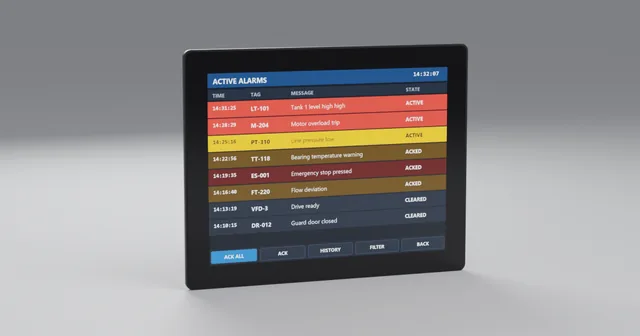
In WinCC Unified there is no Loop In on an alarm, the alarm-side wiring that WinCC Comfort and Advanced project onto a message. The reaction to a marked alarm row is a script, in the screen or in a global script module, and it reads the row one of two documented ways. The alarm display's OnSelectionChanged event hands the script a SelectedRowData structure that carries values only for the columns that display shows, so reading SelectedRowData.ID requires the ID column to be visible. From Runtime V19, Alarm.GetSelectedAlarmAttributes() takes the name of an alarm display on the current screen and returns the selected alarm's attributes whatever the column configuration shows. When the event path returns empty values, the cause is almost always a hidden column.
Why Unified has no Loop In #
In WinCC Comfort and Advanced, Loop In is configured in the context of a message, so the reaction travels with the alarm. Unified has no such alarm-side configuration. The vendor's modernization guidance for bringing Loop In behavior to Unified points at the Selection Changed event of the alarm control, with the reaction scripted in the screen or in a global script module. The consequence is that the script is generic and the display supplies the context. The script decides which attribute drives the action: in the vendor example, the originating Runtime system, the alarm number, the alarm class or the alarm text, each evaluated to trigger a specific screen change.
Event or method: the two documented paths #
Both paths answer the same question, which alarm the highlighted row represents, but they differ in what they require and in what they give back.
| Access path | Fires when | What the script gets | Documented since |
|---|---|---|---|
OnSelectionChanged(item, SelectedRowData) on the alarm display |
the operator changes the selected row | SelectedRowData, with values for the columns visible in that display |
used in the vendor example of June 2023 on V18 Update 1 |
Alarm.GetSelectedAlarmAttributes() |
the script calls it | all properties of the selected alarm, read asynchronously | Runtime V19 |
The event path is the one the worked example below uses; the closing decisions pick a path for each case.
Empty values at the event path: the visible-column rule #
The documented event syntax is AlarmControl_OnSelectionChanged(item, SelectedRowData). It fires when the selection in the alarm control changes and delivers information about the alarm in the marked row. That structure supplies values only for columns visible in the alarm display, so the column setup controls what the event-driven script can read, not just the presentation. Reading SelectedRowData.ID requires the ID column to be visible; hiding that column removes the value from the object.
Column visibility is engineering configuration. Under Properties > Alarm control > Columns in the Inspector window, enable the Visibility property for each column the script reads. The element names of SelectedRowData are fixed identifiers, not the column captions: Table 3-1 of the vendor application example on filtering messages and alarms in SIMATIC WinCC Unified lists them, and spelling and capitalization have to match exactly.
The method path: Alarm.GetSelectedAlarmAttributes #
From Runtime V19, Alarm.GetSelectedAlarmAttributes() returns all properties of the selected alarm in the alarm control, regardless of which columns that display shows, so no column has to be switched on for the script to work. The documented behavior is an asynchronous read: the attributes arrive when the read completes, not on the line after the call, so the routing logic belongs where the result is delivered. Runtime data in Unified is not always available in one synchronous call, and other reads carry their own limits, such as why a WinCC Unified V19 script cannot read an HMI array at once.
The argument is the name of an alarm display on the current screen, not the screen name. A screen can hold several alarm displays, so read the configured object name from the screen and pass exactly that.
Worked example: route by alarm number #
Example project on the event path. The display shows the ID column, and the rule opens a screen per alarm-number band. The band limits are example values chosen to show the arithmetic, not a vendor default.
// Event handler of the alarm display: its configured name, then OnSelectionChanged.
// Band 100-199 is an example rule.
export function AlarmControl_OnSelectionChanged(item, SelectedRowData) {
  let alarmID = 0;
  alarmID = SelectedRowData.ID;   // arrives empty when the ID column is hidden
  if (alarmID >= 100 && alarmID < 200) {
    // open the screen assigned to alarms in this example band
  }
}
The arithmetic on three example alarms. Alarm 107 is selected: 107 >= 100 is true and 107 < 200 is true, so the rule opens that band's screen. Alarm 42: 42 >= 100 is false, the first comparison ends the check, and no screen change follows. Alarm 205: 205 >= 100 is true but 205 < 200 is false, so this rule leaves it alone. Three rows, three outcomes, all decided by the ID that SelectedRowData delivered, which arrives only while the ID column is visible.
Prove it on a bench project. Build a test screen with the alarm display and three test alarms numbered 42, 107 and 205, and store alarmID in an internal tag. With the ID column visible, selecting row 107 puts 107 in the tag and fires the rule. Hide the ID column, reload runtime, select the same row: the tag stays at 0. That observation proves the value came from the visible column, not from the alarm list. Run the method variant on V19 beside it and confirm it still returns the attributes with the column hidden; that contrast is the decision.
Decisions per case #
- The project stays on V18 Update 1: the event path only, with every column the script reads switched on.
- V19 or newer, and the rule needs an attribute no column shows, or the logic lives in a global module:
Alarm.GetSelectedAlarmAttributes()with the current screen's display name as the argument. - The action should follow the click and reads only displayed fields: the event path.
SelectedRowDatacomes back empty: enable the missing column'sVisibilityproperty. The method gives no usable attributes: check that the display-name argument matches an alarm display on the screen that is open.- One boundary: a selected-row script is operator guidance, so never place an interlock or a safety function behind the screen change it triggers.
Questions asked
Can a script also read how many alarms are present?
Yes. WinCC Unified scripts can check the number of alarms present, and the vendor documents the technique in support entry 109955144, Display number of alarms in WinCC Unified via script. Use it for a header counter, or to keep the action button from firing on an empty list where a selected-row read would have nothing to return.
Should the selected values be buffered in I/O fields like the vendor example?
The example buffers them in I/O fields only to make the values visible for the demonstration. In a real project, write the selection into internal HMI tags or global script variables instead, and in the method variant put the selection read and the action on one button, so the operator cannot act on a row that was selected earlier and has since changed.
Can GetSelectedAlarmAttributes run from a global script module?
Yes, and that is one of its advantages: the logic does not have to sit on the screen with the display. The argument must still name an alarm display on the screen that is open in runtime when the script executes, and a global module does not search other screens, so a display on a screen that is not open has no selected alarm to read.
The PLC should decide which screen opens, not the operator's selection. What changes?
Then the selected-row techniques are the wrong trigger. Keep the alarm display for awareness and drive the navigation from the controller, the way PLC-initiated screen changes are done in WinCC through a job mailbox or a tag event. The selection event and the GetSelectedAlarmAttributes method answer the opposite case, where the operator picks the alarm and the panel reacts to that pick.