Troubleshooting
Why a Mirrored Remote Operator Screen Needs a Double Tap
Short answer
When a Windows 10 tablet's remote operator application needs two taps only on the mirrored controller display, while its menus and a USB mouse work with one tap, the touchscreen is healthy and the fault is in the remote-display input path. Test for window focus acquisition, a touch coordinate mapping offset, or touch-versus-mouse event forwarding, changing one condition at a time, and operate with the mouse until single taps return.
On this page
- Why does the mirrored PLC screen need two taps when the menus need one?
- What should you use to keep the machine operating while you diagnose it?
- Is the first tap grabbing focus or landing in the wrong place?
- How do you test for a touch coordinate mapping error?
- Which settings deserve a controlled comparison?
- How do you run the input isolation test without losing control?
- When do you stop troubleshooting the tablet and change the setup?
- Questions asked
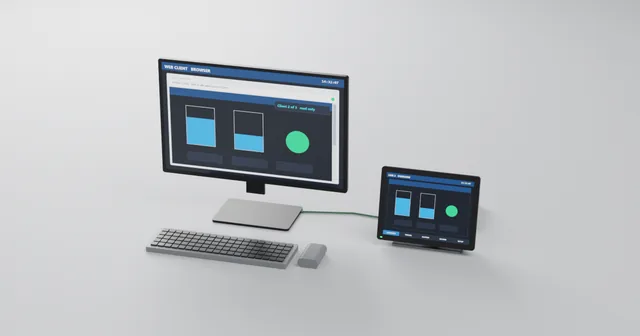
A Windows 10 tablet mirroring a controller screen through a remote operator application needs two taps on the mirrored display, while the application's own menus, its connection controls and a USB mouse all work with one tap. That pattern is not a touchscreen fault: the menus prove the digitizer, its driver and the application's local input handling are healthy. The first tap is being consumed inside the remote-display input path — by window or surface focus, by a coordinate mapping that puts it on the wrong pixel, or by event handling that treats touch differently from mouse input. Diagnose it layer by layer with controlled comparisons, and keep operating with the mouse until single taps return.
Why does the mirrored PLC screen need two taps when the menus need one? #
Two taps on the mirrored display and one tap everywhere else means the digitizer, its driver and the application's local input handling are all healthy; the fault sits in the layers between the mirrored surface and the controller: focus, coordinate mapping and event forwarding. A local menu handles a Windows interaction directly. The mirrored surface must instead read the pointer position, interpret the press and release sequence, translate that into a remote command, and display the controller's resulting state — three extra places for a tap to be swallowed.
This is the mirror image of the case where the remote path itself is down while the PLC path is fine, covered in why HMI remote access fails while PLC access still works: there the connection is broken, while with a double tap both paths are up and only input translation is wrong. It is also unrelated to double taps caused by an HMI object's own press and release events, which why a parameter set drop-down needs a double tap on touch covers on local panels.
Do not change PLC logic over this symptom. The controller only sees the command the application eventually forwards; the missing first tap never leaves the tablet.
What should you use to keep the machine operating while you diagnose it? #
Use the USB mouse as the interim operating method: it already operates every mirrored control with a single click in this installation, and your site procedures decide whether remote operation may continue while touch is investigated. This is the same fallback as using a mouse and VNC when an HMI touchscreen fails, applied to the client side of a remote session.
- Prefer the mouse because it is already proven on the exact mirrored controls that reject touch.
- Do not train operators to double-tap every control; the FAQ below explains why that backfires once the fault clears.
- Treat a pointing device that works in one layer and not another as a known pattern, not a paradox — the reverse split, a mouse that works only in setup menus while the runtime ignores it, is documented in why a USB mouse may only work in setup menus.
Before any test tap, put the machine in an approved state and confirm the chosen control cannot initiate hazardous motion or an unwanted process change.
Is the first tap grabbing focus or landing in the wrong place? #
Watch one tap on a chosen nonhazardous control and record which of four things happens: the window activates, the touch lands on an adjacent control, the control highlights without a value change, or the value changes while the display stays stale. Each observation points to a different layer, and only one of them is about focus.
| What one tap does | Faulty layer | Deciding check |
|---|---|---|
| The window or display area activates; the next tap operates the control | Window or remote-surface focus | Compare against the display already in the foreground |
| An adjacent control fires, or taps miss near the edges | Coordinate mapping and scaling | Tap several positions and record the offset |
| The button highlights but the controller value does not change | Event forwarding or object binding | Click the same object with the mouse and watch the controller value |
| The controller value changes but the display stays stale | Readback or screen refresh | Compare the controller value with the displayed state |
Timing separates focus from gesture problems. If the second tap works after a pause of several seconds, the first tap is acquiring focus. If operation only succeeds when the taps fall inside the double-click interval — the Windows default is 500 ms — the application is interpreting a gesture rather than two presses. Record what actually happens; do not accept "double-click" from the operator's description alone.
How do you test for a touch coordinate mapping error? #
A scaling mismatch shows up as an offset that grows with distance from the top-left corner of the mirrored surface, and you confirm it with one arithmetic check on the control that actually fires instead of the one you aimed at. This illustrative example uses a 2736 by 1824 pixel tablet panel with Windows display scaling set to 150 percent, giving a logical resolution of 1824 by 1216.
- A button drawn with its center at logical coordinates (600, 400) sits at physical coordinates (900, 600), because 600 × 1.5 = 900 and 400 × 1.5 = 600.
- If the application draws the mirrored surface in logical pixels but reads touch in physical pixels, your tap on that button is reported at (900, 600) and interpreted as logical (900, 600).
- That point is 300 pixels right and 200 pixels below the button, since 900 − 600 = 300 and 600 − 400 = 200. Whatever control sits there fires instead.
The test: tap the same button with the window at two or three positions and note which control fires each time. An offset equal to (scale factor − 1) × the control's logical coordinate at every test point confirms the mismatch. The decision: set display scaling to 100 percent for the operating session and repeat; if single taps return, keep the tablet at that scaling while the application runs.
Repeat the position check after any display change. One publicly documented tablet-driver case left input mapped across two side-by-side displays after a resolution change, cleared only by restarting the driver — so restart the touch driver once as a test and re-check the tap positions.
Which settings deserve a controlled comparison? #
Change one condition at a time, repeat the same single-control test after each change, and restore the baseline before the next experiment, because broad Windows and driver changes have already been tried in this installation without a recorded fix. A comparison log, not another sweep of settings, is what moves this forward.
| Setting or condition | Where it lives | Effect tested |
|---|---|---|
| Display scaling and resolution | Windows display settings | The relationship between displayed pixels and touch coordinates |
| Remote-display zoom, when the application offers it | The application's display controls | Whether the mirrored surface maps input correctly at its displayed size |
| Touchscreen driver | Windows device management | The input events delivered to applications |
| Other pointing devices enabled or disabled | Windows device settings | Whether multiple input paths disturb touch delivery |
| Window and surface focus state | Application interaction | Whether the first touch selects the surface instead of operating a control |
Take touchscreen drivers only through the tablet manufacturer's official channel. An update and a rollback are alternative diagnostic paths: compare a supported newer driver against a previously working version when one exists. A newer version alone does not establish compatibility with one application's remote input surface.
How do you run the input isolation test without losing control? #
Disconnect every other pointing device — external mouse, touchpad, pen — and repeat the touch test with the touchscreen as the only input path, keeping a spare USB mouse within reach in case the tablet needs pointer input to recover. Device order alone can break remote touch: one publicly documented embedded case had a remote screen deliver touches to a fixed input node, assuming the touchscreen enumerated first, so any other device claiming that node silently captured the touches.
- Put the machine in an approved test state and confirm the chosen control cannot initiate motion or a process change.
- Record the mouse baseline: one click, the controller value changes, the display updates.
- Disconnect the external mouse and disable the touchpad and any pen or other pointing device in Windows device settings.
- Repeat one-tap tests on the mirrored control and log what the first tap does.
- Re-enable the devices and confirm the mouse still works before leaving the bench.
When do you stop troubleshooting the tablet and change the setup? #
Commit per branch: a focus behavior is worked around, a mapping offset is corrected by scaling, an event-forwarding fault goes to the application vendor with evidence, and a tablet whose touch path stays unreliable is replaced at the machine.
- First tap activates the window: keep the remote window foreground and maximized during operation, accept the extra tap only after switching applications, and report the behavior to the application vendor.
- A constant offset matching the arithmetic above: run the tablet at 100 percent scaling while the application is in use and note it in the log.
- The control highlights without a value change while the mouse works on the same object: send the vendor the application version, Windows build, driver version and observation log, and keep the mouse until a fix arrives.
- Disabling the other pointers restores single taps: keep the touchscreen as the only pointing device during operation and connect the mouse only for recovery.
- None of the above restores single taps: stop troubleshooting the consumer tablet. Replace it with an industrial panel PC running the HMI at the machine, which removes the remote-display hop entirely and puts digitizer, driver and runtime in one support chain.
Questions asked
Will recalibrating the touchscreen in Windows clear the double tap?
Not this fault. Windows touch calibration corrects a linear offset between the digitizer and the glass, and the application menus already track a finger accurately, so that offset is already correct. Recalibration does nothing to how the mirrored surface interprets a tap, which is where this fault lives.
Does the connection Run/Stop button change the controller's operating mode?
No. It starts and stops the application's connection to the controller; the controller keeps executing its program either way. Keep that distinction in the test log so nobody reads a connection restart as a controller stop, and so commands sent through the mirrored screen are judged separately from connection management.
Should operators simply be trained to double-tap until the fault is fixed?
No. The moment the fault clears, the extra tap becomes a second real command, and on a toggle or momentary control that means a double toggle or a double jog. Keep the USB mouse as the interim method instead, and treat every two-tap report as a fault to log with the observation table.
Is the tablet itself the faulty part?
Possibly the combination of its digitizer driver and the application. The decisive comparison is the same application version on a different Windows tablet: if single taps work there, replace or reassign the first tablet rather than the application, and record both machines' driver versions in the log.