Troubleshooting
Why a WinCC trend is empty after a runtime restart
Short answer
An online trend that comes back empty after a WinCC Runtime Professional restart is either bound to the online tag, which resets every restart by design, or pointing at a log that is not being written or read. Add a Table control on the same log, read the trend status bar, verify the logging path and tag log assignment, then bind each curve to the logged tag with a time range that covers stored records.
On this page
An online trend control that fills while runtime is up but comes back empty after a restart has one of two causes: the curve is bound to the online tag in runtime memory, which resets on every restart by design, or the data log is not being written or read. Setting the logging path in the Runtime settings dialog is necessary but not sufficient. Work through the checks below in order; each outcome names the next check.
Separate a writing fault from a binding fault #
A Trend control and a Table control can both read the same data log. This one test splits the problem in half before you touch any setting:
- Add a Table control bound to the same log tag on a test screen and restart runtime.
- Table shows rows older than the restart, trend does not: the log is written and readable, and the fault is in the trend control. Go to Fix the trend control.
- Neither shows older rows: the log is not being written, or not being read. Go to Check that the log is written.
- Both show history: the original screen binds to a different tag or log than the one being recorded. Compare the curve source in the trend with the log configuration.
Check that the log is written #
Logging requires three conditions to hold at once:
- The tag has a log assigned and logging enabled with a defined cycle or trigger. A tag with no log assignment never produces history, whatever the runtime settings say.
- The storage target configured under the logging entries in the Runtime settings editor exists on the IPC when runtime starts, is on a drive mounted at startup, and is writable by the runtime account.
- The log has free space and is not configured so small that new records immediately overwrite the history you want.
On the IPC, open the configured storage location and check that the log files exist and that their modification time advances while runtime runs. A timestamp that does not change means runtime is not writing: fix the path, the account permissions or the disk state, then repeat the Table control test. An advancing timestamp means the write side is healthy and the fault is on the read side.
Check engineering and runtime update levels #
Compare the exact version and update level of the engineering installation and the runtime installation on the IPC, read from the installed-programs list on each machine. A mismatch is a known cause of runtime behavior that differs from what the project configures, including logging and trend display. Align both to the same update level, fully recompile the project, retransfer it and repeat the Table control test before changing anything else.
Fix the trend control #
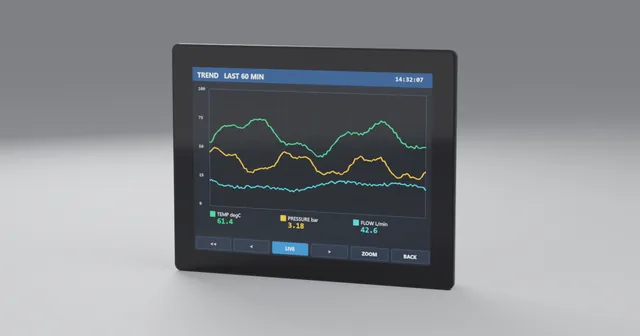
If the Table control shows stored rows while the trend stays empty, the remaining fault is in the trend itself. The Trend control's status bar reports the data connection state and any access error when it fetches from the log, so read it first:
- Status bar reports a log access error: go back to the storage path and permissions; the query is failing, not returning nothing.
- No error, empty window: the curve is bound to an online tag or the time range starts after the stored data. Bind each curve source to the logged tag, not the online value, and extend the time range.
- History appears only after scrolling back: the control opens on the current time with a range too short to reach the stored records. Widen the range.
An online-only binding is filled from runtime memory and resets on every restart by design, so an empty trend after each restart is the expected result of that binding, not a logging failure.
Worked example: choose a time range that survives a restart #
Take an example tag logged at a 10 second cycle, with runtime running 2 hours before a restart:
- Records stored per hour: 3600 seconds / 10 seconds = 360 records.
- Records for the 2 hour session: 2 × 360 = 720 records.
- A trend time range of 30 minutes at that cycle covers 1800 / 10 = 180 records.
If runtime restarts at 14:00 and the range starts at 13:30, the control must fetch 180 pre-restart records from the log. With the curve bound to the logged tag and no access error, the trend draws through the restart with a gap only for the time runtime was stopped. The same 30 minute range on a tag logged at a 60 second cycle covers 1800 / 60 = 30 records; a range shorter than one logging cycle can open on nothing at all.
Verification after the fix #
- Log files in the storage location show modification times that advance during runtime.
- The Table control returns rows spanning the pre-restart period, with no gap larger than the logging cycle.
- The trend displays the pre-restart curve when its time range is moved back, continuous across the restart except for the stopped period.
- The trend status bar reports no access error after the restart.
One safety note: work on logging and trend configuration with the process in a safe state on a bench or a non-critical screen; do not stop runtime on a machine that depends on that station for operator control while it is running.
Questions asked
Can I set the data logging path in runtime settings alone and expect history?
No. The logging path in the Runtime settings dialog only tells runtime where to store the log. Each trended tag also needs a log assigned with logging enabled at a defined cycle or trigger, the storage target must exist and be writable by the runtime account when runtime starts, and the trend curve must be bound to the logged tag rather than the online value.
How do I tell a logging fault from a trend binding fault quickly?
Put a Table control on the same data log as the trend control. If the table shows rows older than the restart while the trend stays empty, the log is written and read correctly and the fault is in the trend binding or its time range. If neither shows older rows, runtime is not writing or not reading the log, so check the path, permissions and tag log assignment.
What does the trend control status bar tell me?
The status bar of the Trend control reports the state of the data connection and any error text when the control fetches from the log. An access error points back to the storage path or permissions. No error with an empty window means the range contains no stored records or the curve is bound to the online tag.
How large should the time range be after a restart?
Set the range to the log's retention period or the shift you care about, whichever is shorter. For an example log at a 10 second cycle, a 2 hour runtime session stores 720 records, so a 30 minute range shows the last 180 records and stays filled across a restart. A range shorter than one logging cycle can open on nothing.