Troubleshooting
Why a WinCC Unified alarm row stays after it clears
Short answer
A Program_Alarm row that survives its condition has left the incoming state but still waits for acknowledgment, or the alarm control is showing a history or unfiltered list instead of active alarms. Read the SIG tag online, then the row's state and acknowledgment columns. Fix it by acknowledging the outgoing row or filtering the alarm control to the active alarm list, and change the alarm class's acknowledgment requirement only when the process allows it.
On this page
The row usually is not stuck. When the SIG input of a Program_Alarm call falls, the controller raises the outgoing event and the row leaves a list of active alarms — unless the alarm class requires acknowledgment and nobody has acknowledged yet, or the control is showing a history or unfiltered list instead of active alarms. A third case, a broken connection, leaves the row incoming because the outgoing event never reached the runtime. Work the checks below in order; each reading points to the next check or to the fix.
The events behind every row #
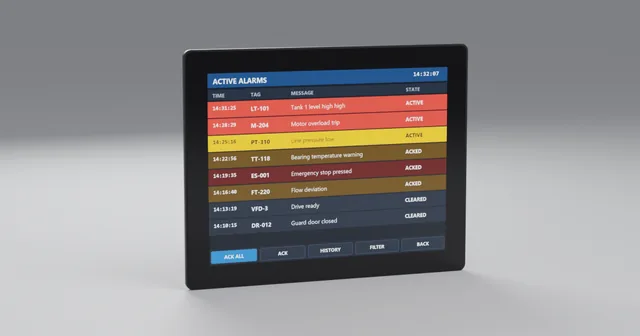
A program alarm passes through three events, reported as three states: incoming, outgoing and acknowledged. Incoming means SIG rose and the condition is present. Outgoing means SIG fell and the condition has ended. Acknowledged means the operator or the program has confirmed the alarm.
What removes the row depends on the list that shows it:
| Alarm state | Condition | Row in a list of active alarms |
|---|---|---|
| Incoming | SIG is TRUE | Shown |
| Outgoing, not acknowledged | SIG is FALSE, confirmation pending | Shown on a class with acknowledgment |
| Outgoing and acknowledged | Ended and confirmed | Removed |
A list that tracks acknowledgment keeps the row until the condition has ended and the confirmation has arrived, so a transient fault cannot slip by between two glances at the screen. A row that survives SIG falling is therefore normal on an acknowledgment class and configurable everywhere else. Decide what a cleared alarm means at this station — condition gone, or condition gone and confirmed — then set class and filter to match.
Read the SIG tag online first #
Open the calling function block online and watch the value that actually reaches the SIG input of the Program_Alarm multi-instance — not only the tag visible at the OB1 call.
- SIG still TRUE. The condition is present and the incoming row is correct. Find out why the tag stays TRUE. When alarms are raised from the HMI through trigger tags on screen buttons, a button that sets the tag while nothing resets it holds the alarm active indefinitely. Several calls of one block wired to a shared tag also trigger and clear together, so a single alarm cannot be cleared on its own. Fix the trigger logic, then read SIG again.
- SIG FALSE. The controller has raised the outgoing event, or should have. Move to the row's columns.
Programs on the classic S7-300 and S7-400 CPUs raise alarms with the Alarm_S block instead; its SIG parameter raises and clears the alarm the same way, and how the SIG parameter and active block count behave on Alarm_S applies when several of those blocks run together.
Read the row's state and acknowledgment #
Show the state and acknowledgment columns in the alarm control's column configuration if they are hidden, then read the staying row:
| The row shows | Meaning | Next |
|---|---|---|
| Outgoing, not acknowledged | The class requires acknowledgment and the row waits for the operator | Acknowledge it; it leaves when the acknowledgment registers |
| Outgoing and acknowledged, still visible | Acknowledgment is not the cause | Go to the list and filter settings |
| Still incoming while SIG reads FALSE | The runtime never received the outgoing event | Go to the controller alarm path |
Confirm first that the staying row is the controller alarm and not a second alarm source displayed in the same control.
Put the control on the active alarm list #
An outgoing, acknowledged alarm that stays visible means the control shows history or has no filter on state. At engineering time, select the alarm control, open Properties in the extended view and configure the list under General > Filter, restricted to active alarms. In runtime the operator can also narrow the view with the Selection display button, filtering by ID, name, alarm class, priority and the other alarm parameters; a stored runtime selection, or a control bound to the alarm log, keeps cleared rows on screen. The step-by-step setup is in filtering the alarm control down to active alarms only.
The configuration that gives active-only display is an alarm control filtered to the incoming state, with a separate control on another screen for history. Give past events their own screen instead of turning the operator's history view into the active list.
Verify the controller alarm path #
If the row stays incoming while SIG reads FALSE, the outgoing event is not reaching the runtime. Check in this order:
- The connection between runtime and controller is established; a lost connection freezes the alarm states last received.
- Controller alarms are enabled in the project tree under HMI → Runtime Settings → Alarms → Controller Alarms — it is the default, verify it anyway.
Program_Alarmis called from an FB, preferably as a multi-instance; a call placed elsewhere can produce incomplete alarm behavior.- Controller and HMI are compiled and downloaded from the same project state, so alarm text and alarm class match on both sides.
Match the acknowledgment setting to the process #
Select the Program_Alarm call and open the inspection window under Properties → Alarm → Basic Settings; this is where the alarm text lives and where the call's alarm class is shown. Open that class in the HMI alarm settings and read its acknowledgment requirement.
- The class requires acknowledgment and operators must confirm faults. Keep it. An outgoing, unacknowledged row waiting on the screen is the configured behavior, not a fault; acknowledge it and it goes.
- The class requires acknowledgment but no confirmation is needed. Point the call at a class without acknowledgment. Rows then leave the active list as soon as SIG falls.
- The line runs unattended. The
Ack_Alarmsinstruction acknowledges every incoming and outgoing alarm in the program with one call; trigger it from a defined event such as the line reset.
One rule holds in every case: never remove the acknowledgment requirement from a class that carries safety-relevant faults just to empty the screen.
Bench check with expected readings #
Run the sequence with the trigger tags online — on the machine or, for a first pass, on a bench. Example setup: one BOOL tag wired to SIG, for example Tank2_high, and one alarm control filtered to active alarms.
- Set the tag TRUE. Expected: one incoming row with the configured alarm text. Variables inserted into the text display live tag values, which is why HMI alarm history shows live embedded variable values in the log.
- Set it FALSE without acknowledging. Expected: the row stays only on a class that requires acknowledgment, showing outgoing and not acknowledged; without that requirement it leaves immediately.
- Acknowledge the outgoing row. Expected: it leaves the active list.
- Raise two calls of the block separately, each with its own tag. Expected: two independent rows; clearing one leaves the other untouched.
- Raise the same alarm again. Expected: a new incoming row — proof that the outgoing state was processed, not suppressed.
If step 5 shows nothing, the alarm is being suppressed or the class never reset; return to the path checks above.
Questions asked
How many active alarms can the alarm control display?
The alarm view in Show active alarms mode displays a maximum of 2048 active alarms; any further alarms that become active are not displayed. If the list stops growing while more faults arrive, the limit is the cause and not the alarm configuration.
Can the PLC read its own program alarm states?
Yes. The Get_Alarm instruction logs on to the message system interface of an S7-1500 CPU the way an HMI does and reads out an incoming or outgoing message. Use it when the program itself must react to an alarm state rather than only display it.
Why does an analog alarm row in the same control behave differently?
Analog alarms come from limit monitoring configured on the HMI tag, not from Program_Alarm. They arrive and clear with the tag value crossing the configured limits and follow their own alarm class acknowledgment, so do not trace them through the controller's SIG logic.
How do you tell apart several alarms raised by one function block?
When one function block is called several times, insert the instance name into the alarm text with GetInstanceName; variables are added to the text by right-clicking in the alarm text editor. Each call then shows which instance raised the row, and clearing one leaves the others untouched.