Troubleshooting
Why WinCC Flexible 2008 SP2 lists no device to transfer to an MP277
Short answer
The blank device pane in the transfer dialog means the project's device settings still target an image revision older than the OS image flashed to the panel. Set the latest revision in the device settings, run a full recompile, and the MP277 reappears for transfer. No cable, driver or Windows reinstall is involved.
On this page
When WinCC flexible 2008 SP2 opens the transfer dialog for an MP277 and the left-hand device pane is blank, the fault is not the cable, the drivers or the PC. It is the image revision selected in the project. If you updated the panel's operating system and the project's device settings still point at the older revision, the engineering system drops the device from the transfer list, and no transfer can start. Open the device settings of the HMI device, set the image revision to the latest one — the revision now on the panel — recompile, and the device comes back. Here is the symptom, the confirmed fix, and the checks for a pane that stays empty.
What the empty device pane rules out #
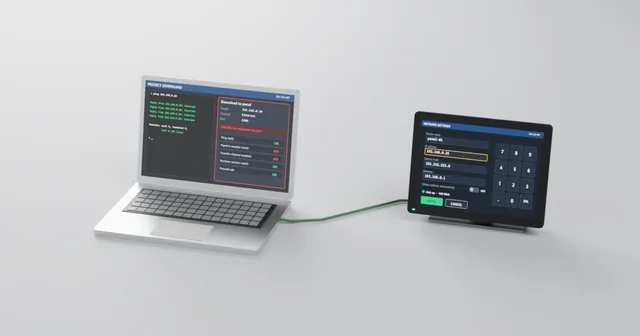
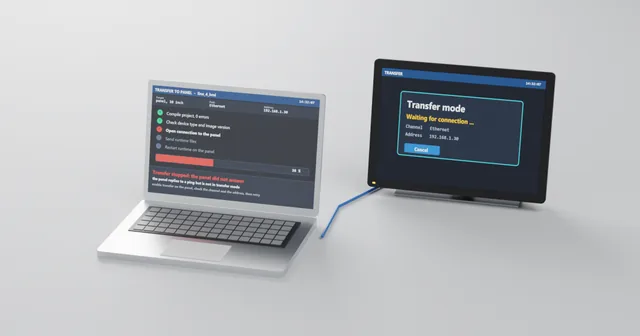
The transfer popup lets you choose the transfer mode and cable, but the box on the left that should list the panel is empty, and the message There are no devices selected for transfer. Select at least one device in the transfer dialog appears. OK stays disabled. After one failed attempt the whole Transfer menu greys out, and the project has to be closed and reopened before another try.
If an operating-system update to that same panel just finished over the same USB master-to-master cable, communication is already proven. The OS update uses the same cable, the same USB enumeration, the same PC-side driver and the same transfer channel a project download uses, so when it completes, all four are good. Leave the cable alone; if it is ever damaged, replace it with the vendor's cable, because a USB HMI transfer cable cannot be hand built. The fault sits one layer up, in the project.
The cause: an older image revision in the project #
The failure has a typical history. A project last maintained in WinCC flexible 2005 for an MP270 10-inch Touch is opened in WinCC flexible 2008 SP2 after the panel is replaced with an MP277 10-inch Touch. The new panel receives an OS update so it works with the newer release, and that update moves the panel to the newest image revision. The project is never moved with it: in the device settings, the HMI device still carries the revision from before the update.
WinCC flexible will not transfer to a device whose configured revision is older than the image on the panel. Instead of reporting that mismatch, it refuses to list the device at all, which is why the pane is blank while the message blames your selection. Siemens' support entry 23337820 for the MP277 covers updating the operating system and using existing projects — the two halves of this migration — and is the reference to keep for the OS-update side.
The fix in the device settings #
- If an earlier attempt greyed out the Transfer menu, close and reopen the project first; that resets the transfer state.
- Read the panel's current revision so you know the target value. On the MP277 it is shown at
Control Panel > OP Properties > Device > Image Version. Right after an OS update, that value is the latest revision. - In the project tree, open the device settings of the HMI device and find the image revision field.
- Change it from the old revision to the latest one in the list — the value you just read from the panel.
- Confirm with OK and recompile everything with
Project > Compiler > All. - Open the transfer dialog again. The MP277 now appears in the device pane. Select it, pick the USB transfer mode, put the machine in a safe state and the panel into transfer mode — the panel's runtime is suspended for the download — and start the transfer from there, because the transfer dialog, not a NetPro connection, is the route for an HMI download.
The worked case #
This sequence closed the case that produced the symptom. The setup: a new MP277 10-inch Touch, OS-updated over a USB master-to-master cable, and a project created in WinCC flexible 2005 for an MP270 10-inch Touch, opened in a fresh WinCC flexible 2008 SP2 installation on Windows 7 Professional 32-bit SP1. The transfer dialog opened with an empty pane and the no-devices message, and one attempt locked the Transfer menu until the project was reopened.
Two checks were tried first and changed nothing: deleting the temporary files and recompiling does not help while the revision is still wrong, and the compatibility overview gives no promise that this Windows version was ever tested with this release. The check that mattered was the device settings, which showed the pre-update revision. Setting the latest revision — the one the OS update had just placed on the panel — then a full recompile, put the MP277 back into the device pane, and the transfer ran over the cable that had already carried the OS update. No driver change, no Windows reinstall.
When the device is still missing #
Work through these in order once the project's revision matches the panel:
- Reopen the project. A failed attempt leaves the Transfer menu greyed out, and that locked state can hide the device on the next look.
- Delete the temporary files with
Options -> delete temporary files, then compile again. Leftovers from the 2005-era installation or an interrupted compile keep serving the old build. - Confirm the device type is the MP277, not the MP270 the project was created for; a migration can leave the old type in place.
- Build a one-screen test project for the same panel and transfer it. If the test project transfers, the engineering installation and the cable are healthy and the original project carries the fault. If the test project is not listed either, the engineering installation is the suspect: reinstall WinCC flexible 2008 SP2 with the newest hotfix on the PC.
- If the USB path alone misbehaves after the revision matches, move the download to Ethernet and transfer the WinCC flexible project to an MP277 via S7 routing.
The Windows 7 SP1 question #
The compatibility overview for WinCC flexible 2008 SP2 does not list SP1 as a tested platform, and that is all it says. The worked case ran on Windows 7 Professional 32-bit SP1 and transferred the moment the revision matched, so for this symptom the decision is fixed: do not remove SP1, do not reinstall Windows, do not touch the PC. Change the revision first. Only when a one-screen test project for the same panel also fails to appear does the engineering installation earn a reinstall — and that reinstall is WinCC flexible, not Windows.
The decision for each case #
- The same cable just carried an OS update: the link is proven. Skip driver reinstalls and cable swaps, and open the device settings.
- The project's revision is older than the panel's image: set the latest revision, recompile all, transfer. That is the fix, and it takes minutes.
- The pane is still empty afterwards: reopen the project, delete the temporary files, recompile, confirm the device type, then run the one-screen test project.
- The test project fails too: reinstall the engineering software with its newest hotfix and leave the operating system alone.
Questions asked
The latest image revision is missing from the project's revision list. Where does the list come from?
The list only offers the image revisions installed on the engineering station. Get the image update package for the panel from the vendor, install it on the engineering PC, reopen the project, and the new revision appears among the choices. Select it, recompile everything, and the device returns to the transfer dialog.
Does changing the image revision require a full recompile?
Yes. The download sends the compiled runtime, and the compiler builds that runtime against the revision selected in the device settings. A compile from before the change still targets the old revision and does not match the panel. Run a full recompile of all data after the change and before you open the transfer dialog.
The project came from an MP270. Does the device type matter after migration?
Yes. A migration can leave the MP270 as the device type, and a runtime compiled for the MP270 will not start on an MP277 even when the transfer itself completes. Change the device type to the MP277 first, set the latest revision, and compile once, so the runtime you download is built for the panel that receives it.
Should the panel be flashed back to the older image instead of changing the project?
No. Rolling the panel back reinstalls an outdated image and sets the same trap for the next project built on the newer release, while the fix in the project is one settings field and a recompile. The panel stays current, the project catches up, and later transfers from the same engineering release match.