Explainer
Why WinCC Runtime Advanced reaches an FX5U only through OPC
Short answer
WinCC Runtime Advanced has no Mitsubishi driver, so an FX5U is reached in two legs: an OPC server reads the PLC and Runtime Advanced connects as an OPC client. The deciding check is that the server's exact interface, OPC DA or OPC UA, is one the installed Runtime release supports; the FX5-OPC CPU module serves UA only.
On this page
- Why can't WinCC Runtime Advanced connect to an FX5U directly?
- Which OPC server can read an FX5U?
- Is OPC DA or OPC UA the deciding compatibility check?
- What changes when the OPC server runs on another computer?
- In what order should you configure the two legs?
- How long does a value take to reach the screen?
- How do you prove which leg is broken?
- Questions asked
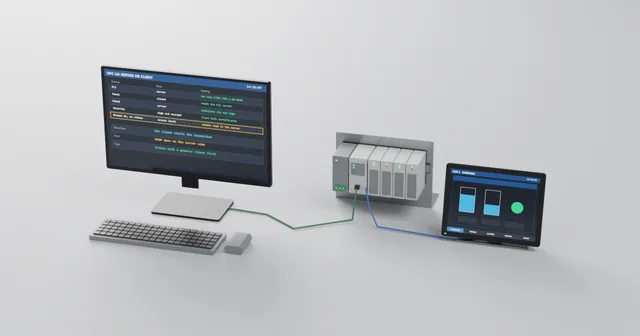
WinCC Runtime Advanced ships without a Mitsubishi driver, so it cannot open a connection to an FX5U on its own. The working architecture has two legs: an OPC server with an FX5U driver reads the PLC, and Runtime Advanced connects to that server as an OPC client. Everything else follows from one check — the server must expose the exact interface, OPC DA or OPC UA, that the installed Runtime release supports as a client. This article gives the server choices with the decision for each case, the configuration order, a worked update-delay calculation and the test that names the failed leg.
Why can't WinCC Runtime Advanced connect to an FX5U directly? #
Because the installed Runtime Advanced has no Mitsubishi driver: its connection options contain no channel that speaks the FX5U's protocol, so every tag must arrive through an OPC server as two separately configured and separately tested legs. The question often arrives attached to a WinCC Runtime Professional V14 SP1 setup, because the two products share a portal and half a name; they are separate runtimes with separate driver sets and separate licenses, and a Professional connection recipe proves nothing about the Advanced release on your PC.
The legs also fail differently, which is why they are built one at a time. Leg one, server to PLC: the server's device driver speaks the PLC's Ethernet protocol using Mitsubishi device addresses. Leg two, Runtime to server: everything travels as OPC item identifiers, so a device address copied from PLC notation into a WinCC item field will not resolve.
Which OPC server can read an FX5U? #
Three documented choices exist: the FX5-OPC module that runs on the FX5U itself, the PC-based MX OPC Server UA from Mitsubishi, or a third-party server whose Mitsubishi driver supports the CPU and its route.
The FX5-OPC module, Mitsubishi's MELSEC iQ-F FX5 OPC UA module, is documented as supporting the Core Server Facet of the OPC UA specifications, with an address space that maps variables and objects in a format corresponding to FX5-OPC. It serves OPC UA only, and it runs on the CPU, so no extra Windows software sits in the chain.
MX OPC Server UA is Mitsubishi's PC-based server, listed as an I/O driver OPC UA server. Its device driver handles the PLC protocol; the CPU-side settings it needs are the subject of the FX5U MC Protocol side for WinCC RT Advanced and must match the server's device configuration.
Third-party server families document Mitsubishi FX drivers that expose both OPC UA and OPC DA, reaching the FX series through the programming-port protocol or Ethernet gateways. That dual interface is exactly their value when your Runtime release dictates the interface.
Decision: take the on-PLC module when you want no extra Windows software and the Runtime has a UA client channel; take a PC server when the Runtime needs DA, when one server must serve several controllers within its documented limits, or when the CPU carries no module.
Is OPC DA or OPC UA the deciding compatibility check? #
Yes: DA and UA are different interfaces, and the server must expose the exact one the installed Runtime Advanced release supports as a client — an OPC label by itself guarantees no compatibility. Read the server's feature list and the documentation of your exact release before anything is configured, because a product called an OPC server may serve DA, UA or both.
The cases resolve as follows. A UA-only server such as the CPU module needs a Runtime release that documents an OPC UA client channel; if yours does not, that pairing is dead — bridge nothing with unlicensed software, and either change to a server exposing the supported interface or upgrade the runtime through its licensing. A DA server uses the DA client channel your release documents. A server exposing both: choose UA when the Runtime supports it, and DCOM disappears from the job.
Two traps deserve naming. On this link the PLC-side product is the server and Runtime is the client; HMI OPC UA server vs client: which direction works covers why the reverse pairing reads nothing. And Runtime Advanced can itself act as an OPC UA server, enabled under "Project tree > Runtime settings > OPC settings" by unchecking "None" — that publishes Runtime tags outward to other clients and does nothing toward reading the FX5U.
Finally, the recipe you may have seen — a connection created in the "Connections" editor with "OPC UA" selected as the "Communication driver" — is documented for Runtime Professional. Verify the equivalent client channel in the Advanced documentation for your release instead of copying it across.
What changes when the OPC server runs on another computer? #
The interface decides the extra work: a DA connection across two computers pulls Windows DCOM access and launch permissions into the job, while UA across the network adds certificate trust and endpoint addressing. Decide the placement before the production connection exists, because the choice changes both the Windows work and the failure modes.
With DA and a remote server, the path crosses the firewall and DCOM between the two computers; why a remote OPC DA client fails to reach a LAN OPC server covers that configuration, which is settings work rather than a driver fault. With UA, the remote case is certificate exchange and the server's endpoint address instead.
Decision: with a single Runtime station, run the PC server on the same machine unless plant policy forbids local services — the cross-computer security then disappears. With several stations, or with the on-PLC module, the server is remote from day one: budget the trust configuration and retest it after a reboot.
In what order should you configure the two legs? #
PLC-outward in five steps: confirm the PLC is reachable, configure the server's device driver, prove one test item inside the server, connect Runtime over the supported client channel, then show that same item on a Runtime screen.
- Record the Runtime Advanced version, the Windows version, the server product and version, and the FX5U CPU and firmware; the interface check above runs against these, not against assumptions.
- Verify PLC access with the PLC engineering software over the same Ethernet route the server will use. If the engineering tool cannot monitor the CPU, fix addressing and the CPU's communication settings first.
- Configure the server device: select the documented FX5U-compatible driver and enter the connection settings for that route, keeping the server's own address syntax.
- Create one test item — a variable that changes without commanding equipment — and confirm value and good quality in the server's diagnostics or a test client.
- In the WinCC project, create the connection with the supported client channel, select the item, match the WinCC tag's data type to the type the server exposes, and display it.
Expand to the full tag list only after the single item tracks a safe PLC change end to end. Introduce writes as their own step: check the server's access rights and the PLC's write permissions, and first write a variable that actuates nothing. Put write tests, deliberate disconnects and restarts on an isolated bench with test tags; the production machine gets them only after the bench passes.
How long does a value take to reach the screen? #
Budget it as the sum of the sampling intervals on the path, because each stage can miss the change by up to one of its own cycles; the worked example below lands at about 1.5 seconds worst case.
Example inputs, not measurements: a PLC scan of 4 ms, a server update rate of 500 ms for the item, and a Runtime tag acquisition cycle of 1 s. Worst case before Runtime holds the new value: 4 ms + 500 ms + 1000 ms = 1504 ms, and the screen shows it on the displaying object's next refresh — so quote about 1.5 s plus one screen refresh. If the process needs faster, cut the two large terms, not the scan: with a 100 ms server update rate and a 100 ms acquisition cycle, the same sum is 4 ms + 100 ms + 100 ms = 204 ms. Shortening a 4 ms scan term barely moves a path dominated by the sampling intervals.
Treat these as calculated minimums. Measured delay under load includes server polling behavior, Runtime processing and screen refresh, so verify the deployed system with a timestamped counter: the PLC counts up on a timer tick, and you time how far the displayed count runs behind.
How do you prove which leg is broken? #
Follow one safely changing variable through three observation points — the PLC monitor, a server test client, and the Runtime screen — and the first point where it stops changing or loses good quality marks the failed leg. Use a free-running counter as that variable, so a frozen value is unambiguous, and judge by quality rather than digits: the display can hold the last value after updates stop, so a plausible number proves nothing about the connection.
| What you observe | Failed leg | Where to look |
|---|---|---|
| PLC engineering software cannot monitor the CPU | Before leg one | Cabling, addressing, CPU communication settings |
| PLC monitor works, server item shows bad quality | Leg one | Server device configuration, address mapping, PLC access settings |
| Test client reads the item, Runtime does not | Leg two | Client channel, item identifier, data type, permissions, DCOM or certificates |
| Only some tags fail | Leg two, item level | Item identifiers, data types, address mapping |
| Values arrive but disagree with the PLC | Type mismatch | Signedness, scaling, type agreement between server and tag |
Finish on the bench with three deliberate tests: interrupt the link and confirm Runtime flags invalid or stale data instead of presenting the old value as current; restore it and confirm quality recovers; then restart the Runtime PC and confirm the server comes up and stays reachable under the production account.
Questions asked
Does the FX5-OPC module on the CPU also serve OPC DA?
No. Mitsubishi documents it against the OPC UA specifications, supporting the Core Server Facet: sessions, subscriptions and monitored items in the address space, without alarms or historical access. If your installed Runtime release offers only a DA client channel, use a PC server that exposes DA instead of the CPU module.
What makes a good first test tag?
A 16-bit integer counter that the PLC increments every few hundred milliseconds. It changes without actuating anything, its movement separates a live link from a frozen one, and its simple type rules out scaling and signedness trouble. Bring floats, strings and structured data in only after the counter tracks end to end.
Can you test the server before installing WinCC?
Yes. Use the server's own diagnostics and any standard client for the same interface, a DA browser for a DA server or a UA session client for a UA server, to read the test item. Proving that leg on the bench first means a later WinCC fault is never confused with a server fault.
Do you need the FX5U's MC protocol settings for the OPC route?
For a PC server, yes: its Mitsubishi device driver reaches the CPU over the Ethernet route those settings define, so they must match the server's device configuration. The on-PLC module is set up from the PLC side instead, and either way the Runtime release still needs the matching client interface.