Troubleshooting
Fix hash marks and error 140003 in WinCC Runtime Advanced
Short answer
Hash marks plus a general connection error about registry user rights have one cause on the office PC: its PG/PC interface access point was never assigned, so the runtime has no path to the PLC. Sign in with administrator rights, open Set PG/PC Interface in the Windows Control Panel, map the access point used by the WinCC connection to the adapter that reaches the controller network, then restart the runtime.
On this page
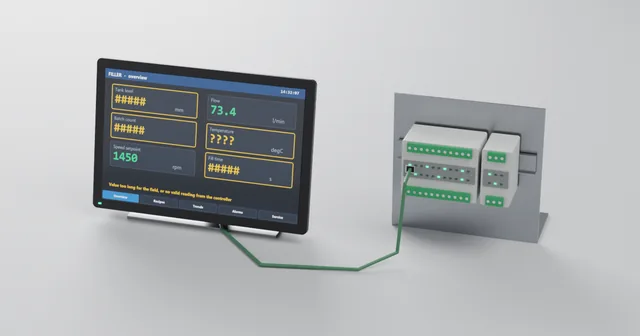
A TP1200 project replicated onto an office PC for display should come up talking the moment the loader opens the compiled application. When every variable field shows #### instead, and startup briefly flashes a general connection error about missing user rights to write into the registry, the PC is reporting one missing piece: its PG/PC interface access point has never been assigned. Without that assignment the runtime has no local path to the PLC, so every controller-backed field reads as unavailable. The rights wording belongs to Windows, not to the HMI project's user hierarchy — a project with no configured operator users still hits it. The fix happens once on that PC: sign in with administrator rights, set the access point in Set PG/PC Interface, map it to the adapter that reaches the controller network, and restart the runtime.
One fault behind both messages #
The two symptoms are one fault. A field showing #### reports a value it cannot display — a tag that is unavailable, or a number that does not fit the field's format; why a simulated HMI shows hash marks, not PLC values explains that display rule. The startup wording is the second half of a documented pair: Siemens lists error 140001, connection disconnected, alongside error 140003, the general connection error naming missing user rights to write into the registry, and gives them one cause — the PG/PC interface assignment is not set on that PC, so no connection to the controller is established.
The mechanics follow from the message itself. Storing the access-point assignment is a write into the Windows registry. The workstation saved that assignment long ago, so its runtime starts with a working path. On the office PC the write was denied, the assignment never got stored, and the runtime opens its screens with no route to the controller — silent fields, plus the rights message in the alarm window that appears briefly at startup.
Copying the compiled project on a USB stick moves screens, tags and connection definitions, not the interface assignment. Deploying a compiled WinCC Runtime Advanced project to a separate PC covers that transfer; this fault is what remains after a clean transfer. An access point is the logical name a Siemens application uses for controller communication, and Set PG/PC Interface maps that name to a physical interface. Connecting WinCC to PLCSIM through the S7Online access point shows the same mapping at work on a bench setup; the field PLC needs the same one-time mapping on whichever PC runs the application.
Read the evidence before changing anything #
| Observed condition | What it proves | Next check |
|---|---|---|
Screens open, every controller field shows #### |
The transferred application loads; values are unavailable | Assign the access point on this PC |
| The same project shows live values on the workstation | Project, driver and controller addresses are sound | Change nothing in the project; compare the PCs' local settings |
| Ping and a network scan succeed | Some adapter has a route to the controller subnet | Confirm the access point names that adapter, not another |
| Startup flashes the registry-rights message | The write that stores the assignment was denied | Save the assignment under an authorized Windows account |
The working workstation is a useful comparison, not a donor: its adapter name, its Windows account and its registry entries already differ from the office PC's. Record the account that starts the runtime and the adapter carrying the controller network on each PC before you change anything.
Assign the access point on the office PC #
- Sign in to Windows with an account that has administrator rights. The assignment is a registry write, so the account saving it needs that right; the everyday display account can keep running the runtime afterwards.
- Open Set PG/PC Interface from the Windows Control Panel. Siemens engineering tools open the same dialog, so either path reaches it.
- Select the access point or logical device name configured in the WinCC connection from the dialog's list. S7ONLINE (STEP 7) is the standard application access point the engineering documentation names.
- Assign that access point to the physical Ethernet adapter that reaches the controller network — this PC's own wired port, never a name copied from the workstation.
- Apply, close the dialog and restart the runtime from the loader.
Values fill in on the first screen refresh. If the rights message returns under the display account, an administrator saves the assignment once, and the display account then runs the runtime without elevation. Do not run the runtime permanently with elevated rights and do not loosen registry-wide permissions to silence the message; the single denied write is the whole problem.
Worked example: pick the adapter by its address #
Suppose the controller sits at 192.168.0.1, the office PC's wired port holds 192.168.0.10 with mask 255.255.255.0, and a VPN adapter shows 10.8.0.2. With that mask, subnet membership is decided by the first three octets, so the controller's subnet is 192.168.0. The wired port matches; the VPN adapter matches none of the three. The access point therefore maps to the wired port. Mapped to the VPN adapter instead, the runtime holds no route to the controller even though ping still succeeds, because Windows sends ping over whichever adapter has the route.
Separate reachability from the runtime's path #
Ping tests ICMP echoes, and a firewall can pass those while dropping the driver's application traffic. S7 communication rides on TCP port 102, so the PC's firewall must allow that port toward the controller subnet. Office PCs add wireless cards, VPN clients and virtual adapters, which multiplies the wrong candidates; the access point is what pins the choice down. Decision: name the wired controller-network adapter in the access point, allow TCP 102 toward the controller subnet in the firewall, and judge the fix by the first live value on screen, not by ping.
The decision for each case #
####with the registry-rights message at startup, the reported case: the assignment was never stored on that PC. Save it once under an administrator account; the project stays untouched and the display comes alive.####with error 140001 after an assignment exists: the mapping names an adapter without a route, or the firewall blocks TCP 102. Re-point the access point to the wired controller-network adapter and allow the port.- Screens live but a few fields stay
####: those fields cannot display their own values — a format overflow or an offline tag — which is display configuration, not this connection fault. - The rights message returns for the display account after a correct assignment: an administrator re-saves the setting, and IT traces the denied write in the Windows event log. That follow-up is Windows administration, not HMI project work.
Questions asked
Does the WinCC Runtime Advanced license on the office PC matter for this fault?
Licensing and communication are separate checks. A properly licensed runtime still shows hash marks until the access point is assigned, because the license decides whether the runtime may run, not whether it reaches the controller. The screens opening tells you the runtime itself runs on that PC; this fault lives one layer lower, in the interface assignment.
Which access point does my WinCC connection use?
Open the connection's properties in the engineering software and read the access point or logical device name set there; that exact name is what Set PG/PC Interface on the runtime PC must list and assign. S7ONLINE (STEP 7) is the standard application access point, but a connection can carry its own logical name, so the project setting wins over any default.
Can the field panel and the office PC display at the same time?
Yes. The TP1200 keeps its own connection to the PLC, and the office runtime opens a second, independent one once its access point is assigned, so fixing the PC never disturbs the panel in the field. Treat the office PC as an added station: keep its update cycles moderate so the combined polling of both stations stays inside what the PLC's documented connection capacity allows.
What is the difference between errors 140001 and 140003?
Siemens documents them as the pair that appears when WinCC Runtime Advanced cannot communicate with one or more PLCs. Error 140001 reports the connection as disconnected, meaning the runtime found no path. Error 140003 is the general connection error whose text names the missing right to write into the registry, meaning the assignment was never stored because that write was denied. You can see either or both; assigning the access point under an authorized account clears the pair.
Do I need operator users set up in the HMI project to fix this?
No. The rights in the message belong to the Windows account on the runtime PC, not to the project's user hierarchy, so a project with no configured users still needs a Windows account that Windows allows to store the interface setting. Users created inside the project control screen access and runtime permissions, a separate layer this fault never touches.