Troubleshooting
Unified Comfort panel X2 PLC connection that stays down
Short answer
When a Unified Comfort panel's PLC connection stays down after moving from X1 to X2, a working SmartClient session and error-free downloads only prove connectivity and transfer, not that the runtime established its configured PLC connection. In the reported case, communication returned only after the panel image moved from V16.00.00.01_17.01 to V16.00.00.03_03.01.00.36, so verify the X2 interface assignment, then update the image before rebuilding the project again.

On this page
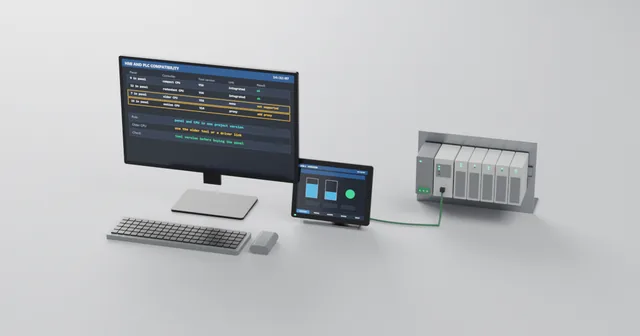
When a Unified Comfort panel moves from its X1 port to X2 and the PLC connection stays down, a working SmartClient session and an error-free download do not prove what they seem to. They show connectivity and transfer, not that the panel's runtime opened its configured PLC connection. In the reported case, every configuration change — the new port in the PLC hardware configuration, a redrawn HMI connection, hardware rebuilds on both devices, clean downloads — changed nothing, and the panel communicated again only after its image moved from V16.00.00.01_17.01 to V16.00.00.03_03.01.00.36. Work the checks in that order: verify the X2 addressing and the HMI connection's interface assignment first, and when those are right, stop rebuilding the project and update the panel image. The image update changes the panel's runtime software and nothing else in your configuration, which is what separates this fault from a wiring or addressing mistake.
What the SmartClient session and the clean download prove #
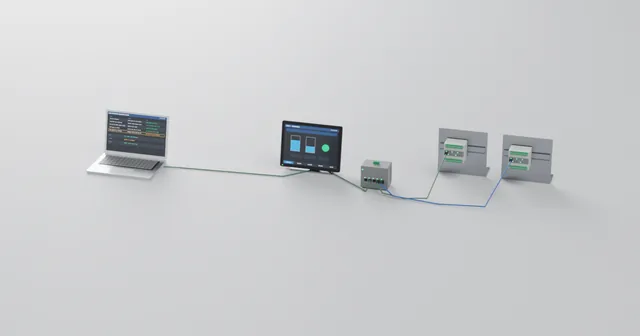
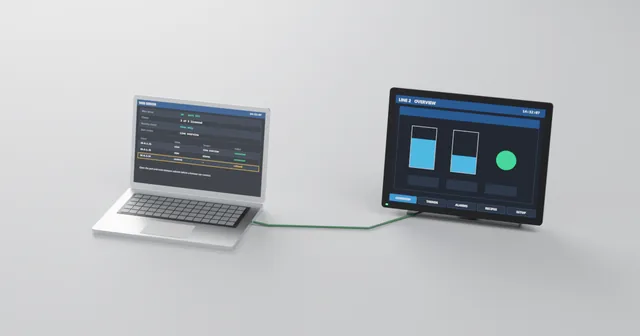
Three separate conversations run around this panel, and a pass on one tells you nothing about the others. The SmartClient session is a remote-view conversation between a client PC and the panel; running it through X2, as this install did, proves the port, the cable, the switch and the panel's X2 address all pass traffic in both directions. The project download is a transfer conversation between the engineering station and the panel; completing it without errors proves that same path and address again, plus a working transfer mechanism. The PLC connection is the third conversation: the panel's HMI runtime opening the configured connection to the controller. The first two never exercise the third.
The vendor's troubleshooting list for Unified runtime connections puts an unconfigured integrated connection and the connected hardware at the top of its causes, and the bench agrees: a rebuilt, recompiled, cleanly downloaded project can still fail at the one step where the runtime actually opens the connection. That is the same distinction behind When an HMI and PLC ping but will not communicate — reachability is not communication.
Checks that rule the X2 move in or out #
Run these in order and stop at the first failure:
- Trace the physical path. Follow the cable from the panel's X2 connector to the switch and check the link LEDs at both ends. Expected: link up, one subnet, no duplicate addresses.
- Read both endpoint addresses against the project. Panel X2 address and mask, PLC port address and mask, gateway entries. Expected: both endpoints match the project — for example a panel at 192.168.0.20 and a PLC at 192.168.0.1, both with mask 255.255.255.0.
- Check the HMI connection's interface assignment. The connection names the interface it uses; after a physical port move it must name the interface that owns X2, not the one that owned X1.
- Check the PLC side. The HMI connection exists as an integrated connection in the PLC project; after a port or address change, recompile the PLC and download it before you blame the panel.
- Watch the runtime, not the project tree. On the panel, read the connection status and tag quality. All tags on that connection bad means the shared connection is down; a connection reported established with only some values bad is a tag problem, not a network or image problem.
Worked example: three legs proven, one left #
Run the reported case as a leg test, with example addresses — panel at 192.168.0.20, PLC at 192.168.0.1, one 255.255.255.0 subnet. The first two passes below are the ones the case documented; run the ping yourself if it has not been done:
| Conversation | Test | Status | What a pass eliminates |
|---|---|---|---|
| Engineering station to panel | Project download over X2, no errors | Pass (reported) | Cabling, switch, panel's X2 address |
| Client PC to panel | SmartClient session over X2 | Pass (reported) | The X2 port itself: the panel transmits and receives on it |
| Engineering station to PLC | Ping of the PLC address from the same subnet | Run it — expect a pass | PLC powered, addressed, reachable |
| Panel runtime to PLC | HMI connection status and tag quality | Fail (reported) | Nothing — this is the unproven leg |
The arithmetic of the elimination: three legs proven good leaves the fourth. Inside that leg, addressing is already proven by the download and the ping, and the HMI connection had been redrawn and recompiled, so the one element left unproven is the runtime code that opens the connection — code that lives in the panel image. The A/B result confirms it: with the identical project and addressing, the older image did not communicate and the updated image did. Fix releases for these panels are documented as containing bug fixes and quality improvements, with notes for each image version in the download package, so the update is a directed diagnostic step rather than a guess.
Update the image the documented way #
Do this when the process does not depend on the panel, and hold power stable throughout — an interrupted image write can leave the panel unbootable.
- Read the installed version: on the panel, open System Properties, then Panel Information, and write down the exact Image version string.
- Save the engineering project and take the panel backups the update procedure calls for; record the network settings.
- Match the package to the exact panel model and engineering software release. Get the image from the manufacturer's support portal or an authorized distributor, and read the notes included with that image version before installing.
- Follow the documented procedure for the update itself, including its power and transfer conditions.
- After the restart, read the version back on the same Panel Information page instead of trusting the updater's completion message.
- Restore or re-download the HMI application as the procedure requires, recheck the X2 address and the HMI connection, then prove the result with a live tag, not with a clean project tree.
Keep the image version separate from the device version when you compare packages and panel data — Device version vs panel OS image on Unified Comfort Panels spells out which is which.
The decision for each case #
- Addressing or interface assignment is wrong — fix it and move on: correct the panel X2 address, the PLC port address or the connection's interface assignment, recompile both devices, download again. The image was never the fault.
- Every check passes, X1 communicates and X2 does not on the same project — stop rebuilding. Update the panel image to the newest fix release your model and software version list as compatible; in the reported case that single step restored communication.
- The runtime reports the connection established but some values stay bad — that is tag or display configuration. Fix those tags and leave the image alone.
- Your HMI is a PC runtime rather than a panel — the same symptom there has different causes; Why WinCC Unified PC Runtime fails to open its PLC connection walks through that failure.
Questions asked
Does SmartClient on a Unified Comfort panel require the X2 port?
That depends on the panel model and its supported network arrangement, so confirm the port layout in the manual for your exact model rather than copying another installation. Two documented points for these panels: the Smart Client function needs no separate installation on the panel, and the guidance is to start no more than five Smart Client instances.
How do I choose the right image package for my panel?
Match the download package to the exact panel model and the engineering software release in use, then read the notes included with that image version; fix packages carry bug fixes and quality improvements. Install the newest release your model and software version list as compatible, and read the installed version back on the panel after the restart.
Does an image update erase the project on the panel?
Treat an image update as wiping panel software and stored content. Back up the panel first, record the network settings, and expect to restore or re-download the HMI application afterward. The engineering project itself stays on the engineering PC; the panel receives its copy again through the restore or download step once the new image is in place.
Can the panel run SmartClient and the PLC connection at the same time?
Yes, and that was the goal in the reported case: SmartClient on X2 with the PLC connection working alongside it, both running after the image update. The failure was never a conflict between the two functions; it was the panel runtime failing to open its configured connection on the new interface until the updated image was installed.