Checklist
What a spare HMI PC needs before the old runtime PC fails
Short answer
Build the spare without a license: install the same runtime version on the same operating system as the working PC, restore the application by the product's documented method rather than a copied folder, and when the old disk fails, recover the license through the vendor's documented process. First confirm whether the runtime is WinCC or InTouch, because the two are not interchangeable. A spare that must run alongside the original needs its own runtime license.
On this page
- Identify the runtime before spending an hour on anything else
- Give the spare the same operating system as the working PC
- Build the spare without a license
- Restore the application the documented way, not by copying a folder
- Recover the license through the vendor when the old disk dies
- Prove the spare, then box the whole recovery kit
- Questions asked
Yes, you can prepare a standby PC for that Windows XP HMI machine without buying a second license, but only if you build it the right way round. The working PC on this line is already a clone of an earlier machine, it talks to an S7 controller over a communication cable, and the software on it has been described both as WinCC and as InTouch 7.11. Those are different products with different installers, project formats and license handling, so the first job is to find out which one is actually installed. The decision: mirror the working PC's operating system and runtime version, restore the application by the product's documented method, leave the license where it is, and recover it through the vendor when the old disk finally dies.
Identify the runtime before spending an hour on anything else #
This machine has been called a WinCC project in one breath and an InTouch application in the next, and the difference decides every later step: the two products do not share installers, project formats or license handling, so a spare built for the wrong one is worthless. Establish the facts from the working PC itself, not from memory or old paperwork:
- Open the installed-programs list and record the product name and its exact version, plus every option and add-on tool, keeping the runtime and any engineering components on separate lines of your record.
- Open the running application and note the version it reports for itself.
- Photograph or export the communication settings to the controller: interface type, node address and port parameters. The spare has to reproduce these exactly.
The decision tree is one line: if the record says WinCC, follow the WinCC path through the rest of this checklist; if it says InTouch 7.11, every step below uses the InTouch equivalent and none of the WinCC procedure applies. The same identification discipline pays off on every replacement job, the same approach as checking HMI engineering software before a panel replacement.
Give the spare the same operating system as the working PC #
The working machine runs Windows XP and a move to Windows 7 has been proposed for the replacement. Compatibility between a runtime of that generation and Windows 7 is not established by anything you can verify from the vendor documentation for that version, and a standby build is the wrong place to run an operating-system experiment: if the spare misbehaves on the day it matters, you will not know whether the restore or the OS is at fault.
- Build the spare with the same operating system version and service pack as the working PC, from installation media you are entitled to.
- Record the OS build from the working PC so both machines match exactly.
- Treat any move to a newer OS as a separate migration project, done only after the vendor's compatibility list for that exact runtime version confirms it.
Decision: the spare gets the same OS as the working machine, no upgrades.
Build the spare without a license #
You buy nothing for this stage. Prepare the machine cold:
- Install the same runtime version you recorded, with the same options.
- Apply the same updates and patches as the working PC: list them from the working PC's update history and match one for one.
- Install the auxiliary tools the application depends on, if the record shows any.
- Leave the spare unlicensed and normally powered off. It is not a second running station; it is a warm shell waiting for a handover.
Restore the application the documented way, not by copying a folder #
Copying the application folder alone is not a verified restore for either product: runtime registration, path entries and tool configuration live outside that folder. Use the product's own mechanism.
- Back up the application on the working PC with the product's backup or export function, and restore from that archive on the spare. For a classic WinCC runtime the deployment steps are the ones in run a WinCC 6.2 project on a separate runtime PC.
- Recreate the communication connection to the controller with the recorded interface type, address and port parameters, using the same cable type or the vendor's supported adapter.
- Do not treat a finished file copy as a finished restore; the acceptance test comes in the last section.
Recover the license through the vendor when the old disk dies #
One runtime license drives one running station, and the plan exploits exactly that:
- While the old PC works, the license stays on it. The spare runs unlicensed only during tests.
- If the old PC still runs at handover time, move the license key to the spare with the vendor's documented license transfer utility. That is a transfer, and it is the supported route.
- If the disk dies with the key on it, use the vendor's license recovery: contact their support with the license certificate or delivery documentation, report the disk failure, and they reissue the key. This is the documented recovery path for a crashed license medium, whether the original came on a diskette or a USB module.
- Never copy key files between disks. A file copy is not a transfer, it does not work reliably across hardware, and it puts you outside the license.
- If the spare must run at the same time as the original, buy a second runtime license. There is no other legitimate answer to that case.
Prove the spare, then box the whole recovery kit #
Test on a bench, not against a running line: put the controller where commands from the test station cannot move the machine, or test against a bench CPU loaded with test data.
- Open every screen, exercise every command and alarm, and confirm live values from the controller arrive.
- Re-run the test after every change to the project, the runtime or the license arrangement on the working PC.
- Keep one recovery kit: the OS image, the runtime installers, the application archive and the printed configuration record. Example sizing: a 12 GB OS image plus 1.5 GB of installers plus 3 GB of application archive is 16.5 GB, so one 32 GB USB stick holds the whole kit with room to spare.
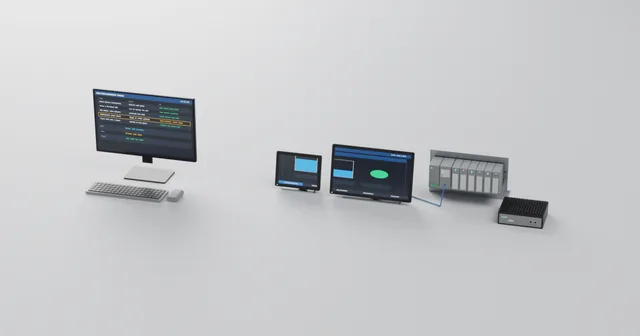
- When the old desktop finally dies for good, an industrial mini PC runs the same runtime inside the cabinet and drives the existing operator display.
The decisions, one per case:
- The record says WinCC: same-version runtime on the same OS, documented project restore, vendor license recovery after a disk failure.
- The record says InTouch 7.11: same-version InTouch runtime on the same OS, its own backup and restore and its own license process, with none of the WinCC steps.
- The standby must run in parallel with the original: a second runtime license, full stop.
Questions asked
Will the application start on the unlicensed spare at all?
Runtimes of that generation commonly start without a license key in a time-limited demo mode, which is enough to prove the application restores and opens; when the period expires the runtime stops until it is restarted. The exact demo period is in that version's documentation, so treat demo mode as a test bench, never as a way to run the spare in production.
Can the old PC keep running after the license moves to the spare?
No. One runtime license covers one running station, so the moment the key moves, the old PC becomes the unlicensed machine. Treat the move as the handover: finish it during a planned stop, verify the spare against the live line, then retire or rebuild the old PC. Keeping both stations licensed means buying a second runtime license.
Does the standby need identical hardware to the original?
No. The runtime does not tie to the motherboard or the disk, only to the operating system it supports and a compatible communication interface. Any PC that runs the same OS version and offers the same interface type to the controller, or the vendor's supported adapter for it, can serve as the standby.
How often should the standby PC be powered and checked?
Power it and open the application at least twice a year, and after every change to the project, the runtime version or the license arrangement on the working machine. At each check, confirm the restored application still matches the live one and that the communication link still comes up. Keep a dated log, because an untested spare is only a hope.