Troubleshooting
Why a WinCC Flexible 2008 TrendView Shows No Grid Lines
Short answer
The 2008 TrendView has no grid property: it draws axis labels only and renders above every screen layer at runtime, so drawn line objects vanish and the WinCC trend ActiveX controls fail to compile or start. Keep the standard TrendView with its axis labels, or move the trend to a platform that documents grid settings.

On this page
- Does the WinCC flexible 2008 TrendView have a grid setting?
- Why do the line objects I draw disappear in PC Runtime?
- Why do the WinCC trend ActiveX controls fail in a flexible screen?
- Is installing WinCC and WinCC flexible on one PC the cause?
- Does any Siemens trend control offer grid lines?
- What can I actually do if the operators need a grid?
- How do I qualify a replacement trend control before deploying it?
- Questions asked
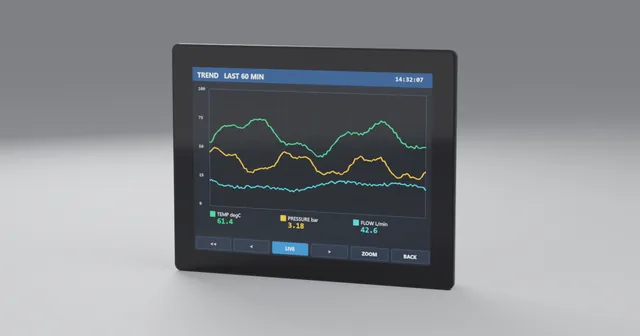
A trend without a grid is not a setting you have missed: the WinCC flexible 2008 TrendView object ships without a grid property at all, and at runtime it paints its curve area over every other object on the screen. That single design fact explains every failure in the pattern you have probably already met — drawn line objects that show in the editor but vanish in PC Runtime no matter how the layers are set, and the WinCC trend ActiveX controls that either fail the compiler or stop runtime when they start. The supported decisions are short: configure the TrendView's axis labels and accept no grid, or move the trend to a runtime whose trend control documents grid settings. The sections below take each attempted workaround in the order you met it and give the decision for each.
Does the WinCC flexible 2008 TrendView have a grid setting? #
No — the TrendView object that WinCC flexible 2008 places on a screen exposes settings for its axes and their labels, and nothing for a grid: there is no grid property to switch on, so the curve area renders with no grid at all.
The property list in the 2008 editor covers the curve, the time axis and the value axis, and the axis settings are labels and scaling; a grid switch simply is not among them. Confirm it on your own installation in two minutes: select the TrendView, open its property list and search for any grid entry — the list ends at labels and scaling. This is not one installation's quirk, and it is not buried on an advanced page; engineers who chase the same question land on the same answer, axis labels only. That makes it a dead end rather than a hidden option: no service pack, layer setting or export trick adds a property the object does not define. What the object does give you is a numeric scale along both axes, and on many screens that scale is exactly the reading aid the grid was going to be.
Why do the line objects I draw disappear in PC Runtime? #
Because the TrendView renders on top of every other screen object at runtime, no matter which layer each object sits on — the lines are drawn, but the trend paints over them, so no layer combination or stacking order leaves them visible.
The report behind this pattern is concrete: lines drawn across the trend area appeared in the editor and then vanished in PC Runtime, and every layer combination produced the same result. The reason is rendering order, not layer assignment: the TrendView draws its curve area last, over all screen objects regardless of which layer each occupies, so anything placed inside its rectangle is covered the moment runtime starts. Layer settings govern objects relative to each other; they do not compete with a control that always takes the front. That rules the overlay approach out entirely — there is no layer, z-order or redraw-order arrangement that turns drawn lines into a grid over this object. Put annotations beside the trend, not inside it, and treat anything that still shows inside the rectangle after startup as worth investigating, not as a solution.
Why do the WinCC trend ActiveX controls fail in a flexible screen? #
Because those controls belong to WinCC, not WinCC flexible: the classic online trend control is rejected at compile time with a fatal inconsistency error naming the item, and the WinCC 7.0 control compiles but then fails when runtime starts.
The classic control is stopped before runtime ever loads. The compiler ends with Fatal ERROR: screen item TlgOnlineTrend_1 in screen Screen_3 contains inconsistent data and should be deleted. — take that literally: delete the named item from the named screen, recompile, and the project builds without it. There is no repair step behind the message; the control was never meant for a flexible screen, and the compiler has no other way to say so.
The WinCC 7.0 control gets further and fails worse: it compiles cleanly, then runtime reports an unspecified error as it starts, with no code to trace. Compiling proves project data consistency only — it does not prove the control loads, registers and renders in flexible PC Runtime. The same split between compiling and actually running appears elsewhere in 2008 work: an FWX compiled in WinCC flexible 2008 still needs 2008 runtime, as set out in Why an FWX compiled in WinCC flexible 2008 needs 2008 runtime. Read the compiler's verdict as necessary, never sufficient.
The three attempts, and the decision each one ends at:
- Standard TrendView — compiles and runs, axis labels only. Keep it if labels satisfy the requirement.
- Classic online trend control from WinCC — the compiler rejects the item as inconsistent. Delete the named screen item; do not deploy it.
- WinCC 7.0 online trend control — compiles, then runtime fails at startup with an unspecified error. Remove it; no repair procedure or compatible version is documented.
Is installing WinCC and WinCC flexible on one PC the cause? #
No — the grid failure is a property of the TrendView object itself, not of your workstation: a machine with both engineering packages installed will still show axis labels only, so reinstalling or splitting the tools changes nothing about the grid.
Opinion on the coexistence question splits: one view calls it harmless, the other warns that each package brings its own SQL installation and that mixing them can produce strange, unrelated errors. Neither claim is documented, and neither matters here — the missing grid and the on-top rendering live in the TrendView object, so they reproduce on a clean machine with a single product installed. Rebuilding the workstation to chase a grid spends the effort on the wrong layer. The one real hazard in having both packages is borrowing one product's screen controls for the other's screens, and the ActiveX attempts above show those controls failing on their own terms, regardless of what else is installed.
Does any Siemens trend control offer grid lines? #
Yes — later generations have one: the WinCC Unified trend control's reference documents grid lines with a GridLines property, and WinCC V7 configures trend lines for its own online trend control from a Trends tab — the 2008 TrendView defines neither.
So the capability exists in the product family, just not in any form you can pull back into a flexible project. The Unified object belongs to Unified screens and their own runtime, and that runtime brings its own setup demands: a Unified panel trend can plot only the current value when its UTC offset handling is wrong, which is the subject of Why a Unified panel trend plots only the current value. The V7 control is the same one that refused to run as an ActiveX above. The newer documentation is still worth reading for one reason: it shows what a grid property looks like when a trend control genuinely has one, and that comparison settles whether your requirement needs a migration or only better axis labels.
What can I actually do if the operators need a grid? #
Decide by what the grid is for: if it is cosmetic, keep the standard TrendView and configure its axis labels; if operators must read values against a gridline, the supported path is a platform whose trend documents grid properties, not any edit inside 2008.
Work the cases in this order:
- Axis labels are enough — keep the standard TrendView. Set the time-axis and value-axis labels to the scale values operators read against, and stop there. The older trend objects were always configured through their axes and curves, the same approach set out in MP270 analog trend curve setup in ProTool and WinCC flexible, and that remains the supported configuration surface in 2008.
- A grid is genuinely needed to read values — plan it as a migration, not a modification. The trend control that documents
GridLineslives in WinCC Unified screens; adopting it means a new project in the newer engineering tool, tags re-declared and screens rebuilt, with the trend re-tested at runtime. Nothing in the 2008 project edits into that. - The platform cannot change — 2008 offers no supported grid, so a third-party control stays a compatibility project and must pass the qualification below. Unqualified, it is a guess.
How do I qualify a replacement trend control before deploying it? #
Prove a candidate control in PC Runtime, never in the editor or the compiler: compile, start runtime on the production PC, open the screen, and watch the trend render and update before you let operators near it.
Run the checks in order and stop at the first failure — each step has already caught a real attempt on this object family:
- Compile the project and act on every message the compiler raises; an inconsistent-data error names the item it wants deleted, and carrying that item into runtime only moves the failure later.
- Start PC Runtime on the machine that will run it in production — moving a 2008 project onto a PC is its own step, covered in Running a WinCC Flexible 2008 Project in PC Runtime — and watch the start sequence for an unspecified-error stop like the WinCC 7.0 control's.
- Open the trend screen and confirm the candidate draws. A borrowed control has no documented stacking behavior, so verify the grid lines stay visible at runtime instead of assuming where it renders.
- Exercise it live: let the connected tags change, restart runtime, and confirm the trend rebuilds its curve; a trend that comes back empty after a restart is its own documented failure mode in Why a WinCC trend is empty after a runtime restart.
- Keep the standard TrendView screen in the project until every step above passes on the target PC — in a 2008 project it remains the only trend object with predictable runtime behavior.
That is the decision in full: labels inside 2008, a documented grid property in a newer runtime, and nothing in between that skips the runtime test.
Questions asked
Why does a control that compiles cleanly still stop the runtime?
Compiling checks project data; starting runtime loads the control's program code, registers it and asks it to draw. Version, registration or loading problems only surface at that second step, which is why the WinCC 7.0 trend control in this report passed the compiler and then stopped runtime with an unspecified error. Treat every borrowed control as unproven until it has run on the target PC.
Does anything place an object above the TrendView at runtime?
No documented setting does. The control paints its curve area last, over every layer, so lines, text or buttons placed inside its rectangle all stay hidden once runtime starts. Keep annotations outside the trend rectangle, or choose an object whose documentation states its stacking behavior — the 2008 TrendView states none, and its observed behavior is topmost.
Is a chart control from outside WinCC flexible a supported feature?
No. A chart control from outside the flexible object set is not a documented feature; it is a compatibility attempt. Reports of this route — Windows chart controls driven through VB script — describe exactly the pattern that failed above: something the editor accepts that runtime then has to prove. Only a bench test on your runtime PC settles it.
What does the inconsistent-data compile error ask me to do?
It asks you to delete the flagged screen item. The message names the item and its screen — in the report, TlgOnlineTrend_1 in Screen_3 — and states plainly that the item contains inconsistent data and should be deleted. There is no repair step behind it: remove the control from that screen, recompile, and expect the project to compile without it.