Troubleshooting
Why an OP77A transfer stops on a panel version mismatch
Short answer
WinCC flexible 2008 transfers to an OP77A over the USB-PPI cable, and a version-mismatch stop means the link already works. Because the project targets an older version than a new panel's image, raise the project's device version, or on an empty panel load the image the project expects with ProSave. Firmware loading over that cable needs adapter hardware revision E-Stand 4 or higher.
On this page
- Can the USB-PPI cable 6ES7 901-3DB30-0XA0 transfer a project to an OP77A?
- Why does the transfer not start at all over the USB-PPI cable?
- Why does WinCC flexible stop the transfer on a panel version mismatch?
- Does a newer OP77A need its firmware updated to match an older project?
- How do you move the project to the panel's device version?
- Why does the Update option in the transfer dialog do nothing?
- How do you load an OS image into the OP77A with ProSave?
- What does the OS load erase on the panel?
- Questions asked
Yes, and the stop you are hitting is the second of two separate checks, not a broken cable. WinCC flexible 2008 downloads projects to an OP77A over the USB-PPI cable, so first make the transfer link real: panel and PC both on the cable's interface, every other program closed. Once the transfer dialog names a version problem, the link is proven and the work moves to the version rule: the image on the panel must match the device version configured in the project. Your case has the project older than the factory image on a newly delivered panel, so the fix is to raise the project's device version — or, because the panel is still empty, to load the image the project already targets. Both routes, the erasure an OS load causes, and the one adapter revision that decides whether this cable can load firmware are laid out below.
Can the USB-PPI cable 6ES7 901-3DB30-0XA0 transfer a project to an OP77A? #
Yes: WinCC flexible 2008 downloads projects to an OP77A over the USB-PPI cable, confirmed in field use, and ProSave can upload from the panel over the same cable, so the version stop you are seeing is not the cable's fault. The OP77A carries an MPI/DP interface, which is why adapter advice written for PPI panels muddies the water, but that has not kept this cable off the job. Its everyday work — linking WinCC flexible Runtime to an S7-200 — is described in USB-PPI cable with WinCC flexible Runtime. What the name does not promise is firmware loading: that depends on the hardware revision marked on the adapter, and it is why an Update click can go nowhere.
Why does the transfer not start at all over the USB-PPI cable? #
A transfer that never begins is an interface problem, not a version problem: the OP77A must wait on the interface the cable is wired to, the PC must route the engineering tool through that adapter, and every other program that can hold the adapter must be closed. Run the checks in this order before touching versions:
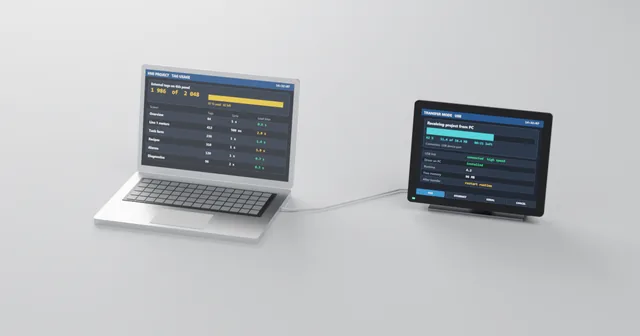
- On the panel, open the transfer settings, select the interface the cable is wired to, and put the panel into transfer mode so it waits for the engineering tool instead of starting its runtime.
- On the PC, open the transfer settings in WinCC flexible and select the interface the cable created; a lit cable means nothing until the tool is pointed at it.
- Close every other engineering package, server or communication tool that can open the same adapter, and leave only WinCC flexible running.
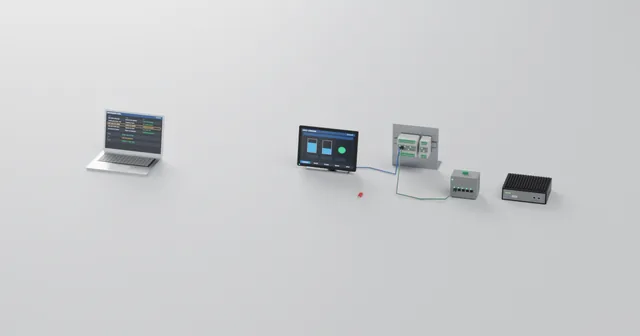
- If the transfer still will not start, move to the panel's MPI/DP interface with a PC Adapter, for example 6ES7 972-0CB20-0XA0 or 6GK1 571-0BA00-0AA0, while remembering that MPI settings pointed at a PPI-only port fail in the same way in reverse, as why PC adapter MPI settings fail on a PPI S7-200 port explains.
- When the cable has been repaired or respliced, check its conductor map against the USB-PPI cable pinout and repair guide before blaming versions.
Why does WinCC flexible stop the transfer on a panel version mismatch? #
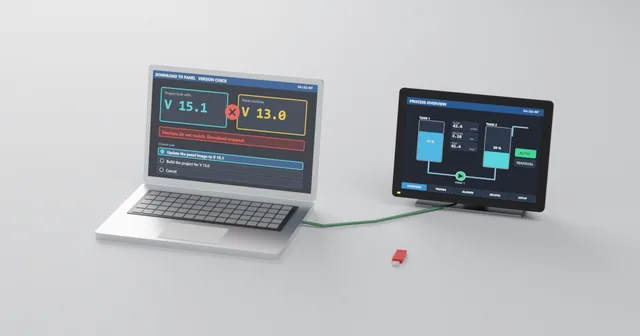
That message means the link works: WinCC flexible has read the panel, compared the image on it with the device version configured in your project, and refused the load, because the documented compatibility rule is that a mismatch aborts loading. Two different numbers are being compared, and you should record both before changing anything. The project's device version is the version of the HMI target chosen when the project was created; the panel's image version is the operating system installed on the hardware at the factory or by an earlier load.
The refusal is deliberate, and Siemens documents the same requirement for its newer engineering environment: when the image on a panel does not match the version set in the project, the load aborts. The same rule as it applies to TIA Portal projects is covered in matching an HMI panel image to its TIA Portal project version.
Does a newer OP77A need its firmware updated to match an older project? #
No: when the project's device version is lower than the panel's image, the panel keeps its firmware and the project moves up; loading an image onto the panel is the answer only in the opposite case, a project newer than the panel. Your situation is the common one — the panel is newly delivered, so it carries the newest image, while the project was built years earlier against an older device version. The three possible states each have one correct fix:
- Project version lower than the panel's image, your case: move the project's device version up. No image is loaded and the panel keeps the OS it shipped with.
- Versions equal: no mismatch exists; if a stop still occurs, reread the message, because it is naming a different fault.
- Project version higher than the panel's image: the panel is the outdated side, and only in this state is an OS load the correct first move.
Decision for a new panel: do not downgrade it as the first move. Raise the project if the engineering tool lists the panel's version; load the older image only as the fallback for an empty panel.
How do you move the project to the panel's device version? #
Inside WinCC flexible, change the HMI target's device version to the value the panel reports, save to a copy of the project, compile until it is clean, and download again — the panel's image is not touched by this route. The device version lives with the HMI target's device configuration in the engineering project, next to the device type itself. The copy matters because it preserves a project that still targets the version the old setup understood. Clear every conversion diagnostic the compiler raises before downloading: objects built under the old version can need attention before the project is valid for the new one.
If the installed WinCC flexible 2008 does not list the panel's version at all, the engineering software is the outdated side: update it to a build that offers that OP77A version, through Siemens or one of its distributors. On a brand-new, empty panel you may skip that update and instead load the older image the project already targets, with the ProSave procedure below. If the tool does list the panel's version, this edit is the whole job and no OS load ever happens.
Why does the Update option in the transfer dialog do nothing? #
Because that built-in update needs two things at once — an image file it can find for the target, and an adapter that can load firmware — and this cable loads an OS only from E-Stand 4, the hardware revision marked on the adapter body. Earlier revisions than that minimum carry project downloads but will not complete an OS load, which is exactly the symptom of an Update click that changes nothing while plain transfers run.
Worked example: the adapter in the drawer is marked E-Stand 2, the minimum is 4, and 2 is below 4 — this adapter downloads the project but cannot load the image, so the silent Update is the revision limit, not a broken installation. Use it for the download step, and do the single OS load with an adapter marked E-Stand 4 or higher, or with a PC Adapter on the panel's MPI/DP interface. Two further causes produce the same silence: another program holding the adapter, and no image file where the tool expects one. On this cable path, stop retrying the dialog's Update and run the load from ProSave.
How do you load an OS image into the OP77A with ProSave? #
Set every DIP switch on the OP77A to Off, connect the cable, and drive the load from ProSave — interface first, then the device type, then the OS Update with the image file and the factory reset ticked. The full sequence:
- Set every DIP switch on the OP77A to Off.
- Connect the USB-PPI cable and note the PC interface it created.
- In ProSave, open Transfer → Communication setting and select that interface and the communication type.
- Set Device Type to OP77A.
- Open Transfer → OS Update and select the image file for the version you decided on: the version the project targets when aligning the panel downward, or the version the project needs when the panel is the outdated side.
- Tick Reset to factory setting, start the load, and leave the panel powered until it completes.
- Reload the project from WinCC flexible and return the panel to service.
One rule stands over all of it: never run this load on a panel that is operating a machine, because the panel is out of service from the first byte until the image and the project are back on it.
What does the OS load erase on the panel? #
The load wipes the panel: the project, the recipes and the user list are deleted and the settings return to defaults, so the panel comes back empty except for the new image just loaded. That erasure is the entire cost of the route, and it decides when the route is acceptable:
- A newly delivered panel, as in your case, has nothing to lose: the erasure is free, and the fallback image load is safe to run today.
- A panel in service must be emptied deliberately: upload its project with ProSave over the same cable first, export recipes and users by the panel's documented methods, and confirm what each backup actually captures before starting the load.
Decision: on the new panel, load the image when updating the engineering tool is the slower job, then reload the project; on a running installation, back up first or skip the load and take the project-side version change, which erases nothing on the panel.
Questions asked
Is the OP77A the same transfer job as the OP73micro?
No. The OP73micro is a PPI device, while the OP77A carries an MPI/DP interface, and advice for one does not apply to the other. Select the device that matches the nameplate in the engineering tool and in ProSave; configuring the neighbouring model is a common reason a transfer never begins.
What is the 6ES7 901-3DB30-0XA0 cable documented as?
It is the USB/PPI multi master cable for connecting an S7-200 to a USB PC interface, 5.6 m long, with no Freeport support. OP77A project transfer over it is a field-confirmed application rather than its headline purpose, so treat firmware loading, not project download, as the step that depends on the adapter's revision.
What happens on the panel if a mismatched project is loaded anyway?
The device manual describes the panel-side effect: when the project version area pointer does not match the version configured in the engineering tool, the runtime on the panel closes. The panel then waits without a running application until a matching project is loaded, which is why the transfer tool refuses mismatched downloads in the first place.
Where do you read the two version numbers?
The panel shows its image version in the system information display, and the engineering tool shows the target's device version with the HMI station's device configuration. Write both down before changing anything; the direction of the difference, not another transfer attempt, picks the route.