Troubleshooting
Why Copy RAM to ROM fails when SCOUT downloads an HMI station
Short answer
SCOUT's Copy RAM to ROM batch fails with 'copy RAM to ROM not performed for any device' because the batch includes an integrated WinCC flexible RT station that SCOUT cannot load; one failed HMI transfer aborts the ROM write for every device. Deselect the HMI station in SCOUT's target device selection, download and copy the SIMOTION CPU alone, and load the runtime with WinCC flexible ES through its own Transfer settings.
On this page
When SCOUT refuses Copy RAM to ROM on a multiproject with an integrated WinCC flexible station, the cause is neither your project nor the panel address. SCOUT's download batch includes the HMI station, SCOUT has no transfer path for a WinCC flexible target, and one failed HMI connection aborts the ROM write for every device in the batch. The compile can finish clean and the error still appears. Fix it by splitting the job: clear the HMI station from SCOUT's target device selection, download and write the SIMOTION CPU alone, and load the WinCC flexible runtime with WinCC flexible ES through its own Transfer settings. The worked case below is the reported bench setup: a WinCC flexible RT station running on the engineering PC itself.
What the failure looks like in SCOUT #
The compile finishes without errors, and the download ends with a dialog reporting "copy RAM to ROM not performed for any device" and pointing at the Target system output detail view. That view shows the batch walking into the HMI station and stopping there:
- Transferring Device_1 (WinCC flexible Runtime)
- Establishing connection to device...
- Transfer failed!
The station configuration in this case:
- Device_1, station type WinCC flexible RT
- Connection HMI IE on the Ethernet_1 subnet, station address 192.168.0.194
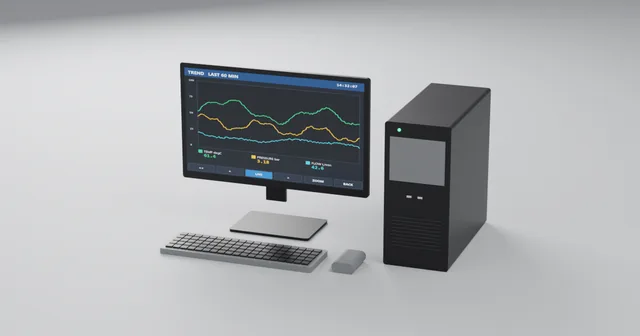
- Runtime host: the engineering PC, because the HMI is only needed for bench testing, so the station address is the PC's own Ethernet address
Read the dialog wording literally: not performed for any device. The SIMOTION CPU did not get a partial or corrupt ROM write; it got none, and its previous load memory image is still intact.
Why one HMI station stops every device #
Copy RAM to ROM is a batch operation: after the load, SCOUT walks every device ticked in its device selection and writes each one's RAM image to its memory card. The machinery behind that walk serves SIMOTION CPUs and drives. An integrated WinCC flexible station exists in the project tree and in NetPro, but its load belongs to WinCC flexible ES, whose loader speaks the HMI transfer protocol; SCOUT cannot open a load session against it. When the batch reaches Device_1, the connection setup fails, the detail view prints Transfer failed!, and the whole Copy RAM to ROM operation reports failure for all devices.
The HMI IE configuration is not the culprit. That subnet is the runtime communication path between the RT and the SIMOTION CPU, and it stays exactly as configured; only the download route changes. Version combinations matter too: Siemens publishes corrected general conditions covering the integrated use of WinCC flexible in SCOUT across the V4.1.2 to V4.4 span, so confirm that SCOUT, WinCC flexible ES and the SIMOTION firmware form one supported combination before you debug further.
Decouple the HMI download from the SCOUT batch #
- In SCOUT, open the device selection dialog the manual documents under
Target system > Select target devices...and clear Device_1, leaving the SIMOTION CPU and any drives ticked. This is the list the download batch walks, and the HMI entry is what poisons it. - Put the SIMOTION CPU in STOP. Siemens documents the Copy RAM to ROM function as runnable only in the STOP operating mode, so a CPU left in RUN is a second, independent blocker. Schedule that STOP transition for planned downtime; never take a running machine to STOP for a download.
- Run the download and then Copy RAM to ROM for the SIMOTION device. With the HMI station deselected, the batch contains only targets SCOUT can service, and the Target system output ends with the ROM write completing instead of an HMI transfer failure.
- Load the HMI separately. Start WinCC flexible ES, open the integrated HMI project, open Transfer settings, and enter the address of the machine running the RT, which is the bench PC's own Ethernet address and also the HMI IE station address in this setup. Select and enable the Ethernet adapter that faces Ethernet_1, then start the transfer. Siemens' Ethernet-transfer checklist asks for exactly these three checks: IP address and subnet mask on both ends, the correct adapter enabled, and Transfer settings matching.
- Verify on the bench: the RT starts and its screens open, the RT holds its HMI IE connection to the SIMOTION CPU, and a SIMOTION variable you force from SCOUT reaches a screen within one polling cycle.
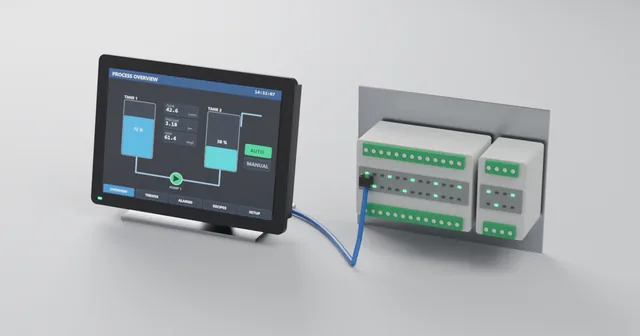
For the permanent install, that RT host is a panel-mounted touchscreen computer at the machine rather than the bench laptop, and industrial panel PCs are the hardware kind built for that job.
Checking the HMI IE station against the 255.255.255.0 bench subnet #
Before blaming the tools, run the addressing check the Ethernet-transfer checklist requires. Inputs for the reported bench case:
- Station address 192.168.0.194, the HMI IE address configured for Device_1, which is the RT host PC's own address
- Subnet mask 255.255.255.0, configured on the station and on the PC adapter
- PC adapter address 192.168.0.31, an example bench address; substitute your own and repeat the two lines of arithmetic
The rule: two IPv4 addresses sit in one subnet when each address ANDed bitwise with the mask leaves the same network address, and the ES loader only opens its session when the RT station and the enabled adapter share that network address.
The arithmetic:
- Station: 192.168.0.194 AND 255.255.255.0 = 192.168.0.0 (192 AND 255 = 192, 168 AND 255 = 168, 0 AND 255 = 0, 194 AND 0 = 0)
- Adapter: 192.168.0.31 AND 255.255.255.0 = 192.168.0.0
- 192.168.0.0 equals 192.168.0.0, so station and adapter share one subnet.
Result: with Transfer settings pointing at the RT station's address and the shared-subnet adapter enabled, the loader's connection request reaches the RT; a ping to the station address from the PC should succeed before you start the transfer.
Decision: matching masked results mean addressing is clean, and any remaining transfer failure is settings- or protocol-side. Differing results kill the transfer at connection setup exactly the way the SCOUT batch died: an adapter at 192.168.1.31 masks to 192.168.1.0 against the station's 192.168.0.0, and no amount of re-ticking SCOUT device lists fixes that. Correct the address or the mask, then retry the ES transfer.
Faults that look the same but are not #
- The WinCC flexible ES transfer itself fails instantly against a physical panel: that is a connection- or settings-side fault with its own fix, described in Why WinCC Flexible transfer to a TP177B PN/DP fails instantly.
- The RT installs but will not start on the bench PC: usually a missing runtime authorization rather than a project fault; Transfer a WinCC license from USB key to hard disk covers moving an existing authorization onto the workstation.
- SCOUT cannot reach the SIMOTION CPU at all, before any HMI entry appears: the PG/PC adapter is wrong or disabled, so enable the interface bound to Ethernet_1, the same adapter check the transfer checklist requires.
- "RAM TO ROM aborted with error" appears right after a version change: Siemens publishes the corrected general conditions for SCOUT versions across V4.1.2 to V4.4 precisely for integrated WinCC flexible setups, so align service packs before retesting.
Moving the integrated HMI to TIA Portal later #
A SCOUT V4.4 project's integrated WinCC flexible HMI configuration is not upgraded in place: the migration path extracts it into the newer toolchain. Comfort Panels then attach to a SCOUT-configured machine through the SCOUT TIA device proxy, so the automation stays in SCOUT while the panel project lives in TIA Portal. That toolchain refuses loads for its own reasons; when a TIA Portal download stops with a preconditions message, resolving the TIA Portal loading-preconditions error is a separate procedure.
Questions asked
Does the aborted batch damage the SIMOTION CPU or its memory card?
No. The dialog says the ROM write was not performed for any device, which means the batch stopped before anything was written: the CPU keeps its previous load memory and the memory card is untouched. After you deselect the HMI station, repeat the download and Copy RAM to ROM from that clean state. There is nothing to recover first.
Which address belongs in Transfer settings when the RT runs on the engineering PC?
The address of the machine that runs the RT, which is the same address configured as the HMI IE station: 192.168.0.194 in the reported setup. Because the RT sits on the same PC as WinCC flexible ES, the transfer never leaves that machine; the check that still matters is that the enabled adapter and the station share one subnet.
Does the same fix apply with a physical panel instead of the PC runtime?
Yes. The abort comes from SCOUT walking a WinCC flexible station it cannot load, so the station being software is not the trigger. With a panel on HMI IE, deselect it in the same target device selection, run Copy RAM to ROM for the SIMOTION CPU alone, and load the panel from WinCC flexible ES over Ethernet after checking addresses and subnet masks on both ends.
Which version combinations matter for integrated WinCC flexible in SCOUT?
Vendor compatibility notes covering SCOUT from V4.1.2 through V4.4 track corrected general conditions for the integrated use of WinCC flexible, so mismatched service packs can produce download faults of their own. Bring SCOUT, WinCC flexible ES and the SIMOTION firmware to one documented combination before you debug a Copy RAM to ROM failure, and re-read the notes after any upgrade.