Troubleshooting
Why Tab moves no focus on a Unified Comfort panel
Short answer
On a Unified Comfort panel's own display the local runtime does not move focus with Tab, reported from firmware V16 through V19, while simulation and the panel's built-in browser honor TabIndex. A barcode scanner's Tab suffix therefore cannot advance fields on that display. Run the five-field test on the device; when focus stays put, capture the whole scan in one string field, validate it, and split it into tags in script.

On this page
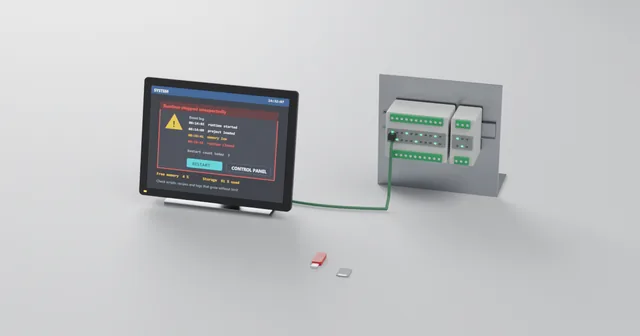
On the local display of a Unified Comfort panel, Tab on a USB keyboard does not move focus between input fields: focus sits on the first field and stays there. The identical screen cycles correctly in simulation on the engineering PC and in the panel's built-in browser, so the TabIndex configuration is not at fault — the client rendering the screen decides whether Tab traversal exists at all. The behavior is reported on TIA Portal V17 with panel firmware V16 and again, three major firmware generations later, on V19. A barcode scanner sending a Tab suffix emits the same key event as that keyboard, so it cannot advance fields on the local display either. The five-field test below settles the question on your own device in ten minutes; after it come the project checks for the case where simulation fails too, and the single-capture-field design that needs no focus movement.
Where Tab works and where it does not #
Focus traversal is performed by the client's focus manager, not by the project. A browser engine implements Tab-sequence navigation natively, which is why every browser-based client honors TabIndex. The panel's local runtime routes keyboard events through an input layer built around touch and the on-screen keyboard, and in the reported tests that layer does not act on TabIndex at all. Reordering the values cannot change an outcome the client ignores.
Reported results for one identical five-field screen:
| Client | Tab result |
|---|---|
| Simulation on the engineering PC | Focus cycles in TabIndex order |
| Panel's built-in browser | Focus cycles in TabIndex order |
| Panel runtime opened in a PC web browser | Focus cycles in TabIndex order |
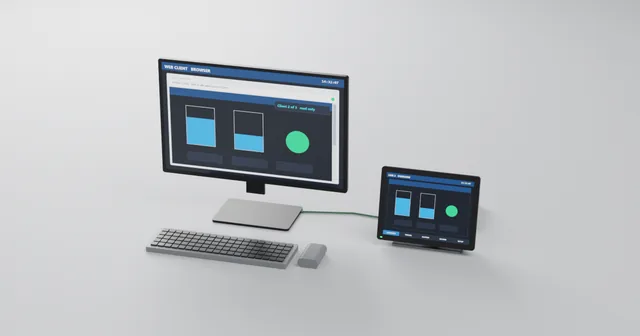
| Web Client from a PC | Intermittent and unreliable |
| Panel's local display with a USB keyboard | Focus stays on the first field |
These are reported results, not a published specification; the test below turns the last row into a measured result on your own panel.
The five-field test on your panel #
- Create a screen with five I/O fields in a flat hierarchy, no scripts, no overlapping objects, TabIndex 1 through 5.
- Deploy it to the panel and connect a USB keyboard.
- Confirm the first field holds focus — touch it if it does not — then press Tab five times.
- Record the result: focus cycles through the fields, or it does not move at all.
- Run the identical screen in simulation on the engineering PC, then open the runtime in the panel's built-in browser, and record both results.
- Record the TIA Portal version from the device properties and the firmware version from the panel's system information, exactly as displayed.
Decision from the recorded results:
- Focus cycles on the local display: your device and project support traversal, and a scanner Tab suffix will advance fields. Confirm it with the ten-scan test in the acceptance section before relying on it.
- Focus does not move while simulation and the built-in browser cycle: the limitation sits in the local runtime's input layer, not in your project. Adopt the single-capture-field design and stop adjusting TabIndex values.
- Simulation fails too: work through the project-side checks next.
Project-side checks when simulation fails too #
Each check has a pass condition on the test screen.
- Enabled and visible: a field that is disabled or hidden at runtime is skipped by traversal. Pass condition: all five fields report enabled and visible.
- Unique TabIndex values: no two objects share one, and no field sits inside a container with its own focus scope. Pass condition: unique values on the flat test screen.
- No focus scripts: no screen-load or property-change script sets focus back to the first field. Pass condition: the test screen contains no scripts at all.
- Bisect: if the screen tabs after these corrections, add the original objects back one group at a time until traversal breaks; the last group added holds the defect.
Capture the whole scan in one field #
A keyboard-wedge scanner types the code's characters followed by its configured suffix. The suffix only does something when the client acts on that key, and on the local display nothing acts on Tab. So remove the dependency: one string input field bound to a String tag receives the complete record, and a runtime script splits and validates it. Two formats work:
- One barcode with separators: the label carries a single code whose content contains a fixed separator character between segments; the scanner transmits it in one piece.
- Several codes into one field: the scanner suffix is set to that same separator character, the field accumulates the scans, and the script acts once the expected segment count is present.
The panels' technical data lists barcode readers among the supported peripherals. Read that as support for entering data, not for advancing focus across several fields; the reported behavior shows the advance does not happen on the local display.
Validate before you write: the script checks the segment count and each segment's length, and only then writes the parsed values to the process tags, so a torn or partial scan can never land a wrong lot number or quantity in the running machine. On any failed check it writes nothing, clears the capture field and raises a defined fault on screen.
// Illustrative pseudocode; the names are not the tool's function names.
// scan_text          : String tag bound to the capture field, initial value ""
// lot_tag, part_tag  : String tags, initial value ""
// qty_tag            : integer tag, initial value 0
parts = split(scan_text, ";")          // parts : array of String
if count(parts)      <> 3 then reject
if length(parts[1])  <> 8 then reject
if length(parts[2])  <> 6 then reject
if length(parts[3])  <> 4 then reject
lot_tag  = parts[1]
part_tag = parts[2]
qty_tag  = to_integer(parts[3])
scan_text = ""
A worked scan with the arithmetic #
Example label, all values illustrative: a lot number of 8 characters, a part number of 6 characters, a quantity of 4 characters, and a semicolon (1 character) as the separator. The scan for lot 48210017, part A11704 and quantity 0250 arrives as 48210017;A11704;0250.
- Expected length: 8 + 1 + 6 + 1 + 4 = 20 characters.
- Expected separator count: segments minus one = 3 - 1 = 2.
- Separator positions: after character 8 (position 9) and after character 15 (position 16).
Check the arithmetic against the string: 8 + 1 = 9, 9 + 6 = 15, 15 + 1 = 16, 16 + 4 = 20. The script accepts the scan only when the length matches 20 characters, both separators sit at positions 9 and 16, and the quantity segment is numeric. A misread that drops the last three characters delivers 20 - 3 = 17 characters: the length check fails, nothing is written and the field is cleared.
Acceptance test for the new design #
Run this on the final screen, deployed to the target panel at production firmware.
- Scan ten valid codes in succession. Expected: ten correct tag sets and an empty capture field after each one.
- Scan a truncated code — the 17 characters of the worked example — and a code with one extra separator. Expected: both rejected, no tag written, field cleared.
- Scan while an operator touches another object. Expected: the capture field still receives the scan, or the screen shows the defined fault; no value lands in the wrong tag.
- Repeat everything after each firmware update. Input handling is a firmware property, so a pass holds only for the version it was measured on.
When to move the workflow to another client #
The capture-field design covers scanner workflows completely. It does not help an operator who must type into many fields with a physical keyboard, and on the local display nothing will. For that workflow, change the client: run the Unified PC runtime or the browser client on industrial panel PCs at the machine, where Tab traversal behaves as the browser rows of the table show. For values an operator adjusts by hand, selecting a value by touch and changing it with HMI function keys avoids the keyboard altogether, and on the classic runtime, keyboard-only WinCC 7.0 runtime operation works once its TAB Sequence is configured.
On the previous panel generation the situation is the reverse: Comfort panels traverse fields in the configured order, and the setup steps are in the knowledge-base article on configuring Comfort panel input focus by Tab Sequence.
Questions asked
Can I program the scanner to send Enter instead of Tab?
Many scanners let you change the suffix with their own configuration barcodes, but Enter normally confirms a field's value instead of jumping to the next field, so it does not give multi-field advance either. Test it once on the actual panel and firmware and record the result. If focus still stays put, the single-field capture design is the answer.
What should I put in a support case about this?
The TIA Portal version and the firmware version exactly as displayed, the blank five-field test project without scripts, and the client comparison: simulation, the built-in browser and the local display. The behavior is reported from firmware V16 to V19, so ask the vendor directly whether Tab traversal in the local runtime is planned for a named release.
Will touch recalibration or a factory reset bring Tab focus back?
No. Touch input and USB-keyboard focus are separate input paths, and the reported failure concerns the keyboard path only. Recalibration changes touch accuracy, not focus traversal, and a reset does not add a feature the runtime does not implement. Run the five-field keyboard test instead and design around the result it gives.
Is the Web Client from a PC a usable workaround?
Reported results say no: Tab through the Web Client works only sometimes, and an operator workflow built on intermittent focus movement is worse than one designed with no focus movement at all. Keep the workflow on the local capture-field design, or move it to a full browser client or a PC runtime.