Troubleshooting
Why WinCC Runtime says no connection to data server
Short answer
A running CCAlgRtServer.exe proves only that the process started, not that Runtime reached the project's data server. When the Windows computer name differs from the configured OS computer identity, recreate the OPC UA configuration, restart and compile the OS entirely; otherwise delete the generated dcf file on the engineering station, compile the OS server with server packages, then load and restart. Alarms returning in the Runtime alarm area is the pass.
On this page
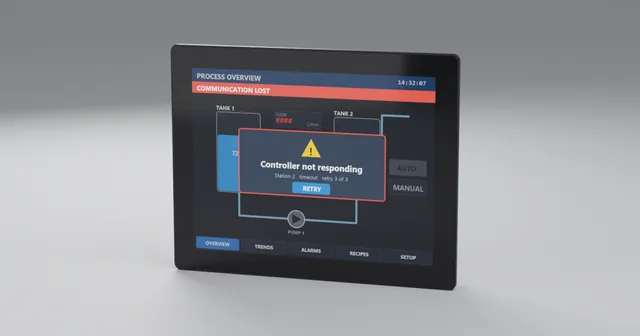
When WinCC Runtime shows No connection to data server and the alarm area stays empty, Runtime has no usable link to the project's data server, even while CCAlgRtServer.exe sits in the process list. After a PCS 7 migration from V9.0 SP3 to V9.1 SP1, or after a renamed, cloned or restored virtual machine, two faults produce this message, and each has its own repair. If the Windows computer name differs from the OS computer identity the project was configured with, recreate the OPC UA configuration and compile the OS entirely. If the names agree, the generated OS server data on the engineering station is stale: delete the dcf file named after the OS, compile the OS server again with the server packages, then load and restart. Alarms returning in the Runtime alarm area is the pass.
What the message reports #
The data server in this message is the runtime relationship between the OS project and the services that supply its configured data. It is not a machine elsewhere on the network, and it is not the Windows process state. That is why the obvious check misleads: CCAlgRtServer.exe running proves only that Windows created the process. It does not prove the project loaded the correct server configuration, or that alarm data can cross the configured connection.
Two neighboring faults carry different messages and different repairs. If Runtime reports that the configured server is not running, the fault is the server process itself, covered in Why WinCC says the configured server is not running. If alarms display but live values stay empty with PLCSIM on the same machine, the fault is the simulation data path, covered in Why WinCC Runtime Professional Shows No Data From PLCSIM.
Choose the repair path #
Work through these checks in order; the first one that matches picks the repair.
- Confirm the exact symptom: the message
No connection to data serverplus an empty alarm area. If alarm messages are present, the data server link is alive and the problem is an alarm class or view filter; rebuild nothing. - Compare the Windows computer name with the OS computer identity configured in the project. A difference selects the OPC UA recreate path in the next section.
- Treat a virtual machine that was renamed, cloned or restored since the last compile as a name difference, even when PLCSIM and Runtime share that one guest.
- If the names agree, or the recreate path did not bring alarms back, the generated OS server data on the engineering station is stale; take the rebuild path.
- If the engineering station also serves as the OS server and an OS path is configured for it, take the rebuild path and remove that path as part of it.
Recreate the OPC UA configuration #
- Close WinCC completely, Runtime and the engineering tools.
- In Windows Search, find Communication Settings and run it as administrator.
- Navigate to SIMATIC NET Configuration > OPC UA Certificates.
- Click Recreate OPC UA Configuration.
- Restart the computer so the rebuilt communication configuration becomes active.
- Compile the OS entirely, not incrementally.
- Start WinCC Runtime and check the alarm area.
The OPC UA configuration carries identity-dependent certificate and endpoint material. When the machine name changes under an unchanged project, that material still belongs to the former identity, so the communication components no longer match what the project expects. The recreate regenerates the local relationship, the restart activates it, and the full compile regenerates the project-side data. Do the recreate with WinCC closed: open runtime components keep the old configuration in memory until they are closed and the computer restarted.
Rebuild the OS server data #
- Close WinCC Runtime on the OS.
- On the engineering station, open the OS project folder and delete the file
<osname>.dcf, named after your OS project. - If the engineering station is also the OS server, remove the OS path configured for it.
- Compile the OS server again on the engineering station, with the server packages included.
- Load the OS server again.
- Restart the OS.
- Start Runtime and check the alarm area.
Loading the OS server and restarting takes the operator station offline, so run this in a window where the process tolerates losing this screen. The deletion alone is not the repair: deleting the file forces regeneration, the compile builds the replacement from the project database, and the load deploys it to the runtime machine. The file is generated output, so never edit it by hand.
Verify the repair #
- The message no longer appears after Runtime starts.
- Alarm messages return to the Runtime alarm area; this is the pass criterion.
CCAlgRtServer.exestays running after Runtime initializes. If it stops, the fault is process startup, a different diagnosis.- The Windows computer name and the configured OS computer identity agree.
Why migration and cloned machines trigger it #
A migrated project carries generated OS data that still represents the pre-migration configuration, and an incremental compile leaves it in place. A renamed or cloned virtual machine changes the computer identity while the project retains the old one, so the service runs but does not accept the project as its configured client. If instead the alarm view fills with PLC connection-loss alarms while the data server message is absent, that is a PLC link fault, covered in WinCC PLC Connection Loss Alarm and NO Connect Display.
Questions asked
Why does Communication Settings have to run as administrator?
The recreate operation rewrites machine-level communication data, including the OPC UA certificates, and a standard user session cannot change it. Run without administrator rights and every step appears to complete while the old configuration stays in place, so the same message returns after the restart.
Does deleting the dcf file lose project data?
No. The file is generated output, not source: the OS compile rebuilds it from the project database, so nothing you authored is lost. What you must not do is stop after the deletion, because without the compile and the load the runtime machine keeps the old data and the message stays.
PLCSIM and WinCC Runtime share one virtual machine. Do I need a second PC or a network change to fix this?
No. This message comes from local identity and generated configuration, not from the network, so the single-VM setup is valid. Renaming or cloning that guest changes the computer identity under an unchanged project, which is the trigger, and the repair is the configuration rebuild described above, not cabling, switches, IP addresses or extra hardware.
The message is gone but some expected alarms still do not appear. Should I rebuild again?
No. The message gone and alarms flowing proves the data server link. Individually missing messages now point at alarm class selection or view filtering in Runtime: check which classes the active alarm view is configured to show and whether acknowledged messages are hidden, rather than repeating the server rebuild.