Troubleshooting
Fixing a KTP900 Basic That Stops at the Splash Screen
Short answer
A KTP900 Basic frozen at the splash screen has a damaged operating system image, and the documented fix is an OS update with Reset to factory settings from a USB recovery stick. Prepare the stick with the USB Recovery Software from Siemens entry 109744950, boot the panel from it, and press START RECOVERY three times. The reset erases the project, so reload it from WinCC (TIA Portal) afterwards.
On this page
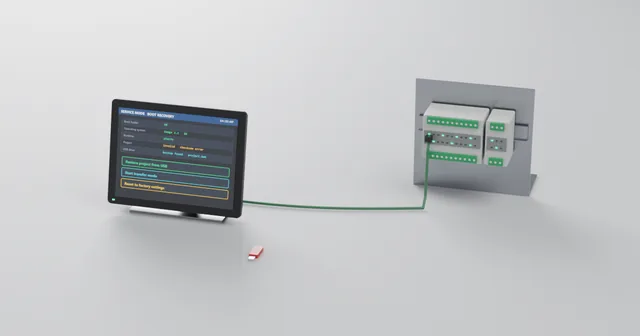
A KTP900 Basic, order number 6AV2123-2JB03-0AX0, that shows its splash and then freezes has an operating system image that will no longer load. The documented fix is an OS update with "Reset to factory settings", run from a USB recovery stick prepared with the USB Recovery Software from Siemens Industry Online Support entry 109744950. You power the panel up with the stick inserted, press "START RECOVERY (..3..)" three times on the recovery screen, and follow the prompts. The panel writes a fresh image and comes back in its loader, and you reload the project from WinCC (TIA Portal) over PROFINET or USB. The reset erases the project and all user data on the panel, so your engineering copy of the project is the restore source.
Why the panel freezes at the splash screen #
At power-up the panel copies its operating system image out of internal flash, and the splash is the last thing it draws before the runtime takes over. When that image is damaged the boot halts right there, before the loader that handles transfers, settings and OS updates ever starts. Nothing at the front of the panel can reach the damaged part, and a power cycle only repeats the freeze, because every boot reloads the same broken image.
The usual ways the image gets to that state:
- An OS update or project transfer cut short, by a supply dip, a pulled cable or an opened breaker, while the flash was mid-write.
- A power loss during commissioning that leaves the image half-written, the same failure that leaves an MP 377 showing image is corrupted after a power loss.
- A project transferred against an image version it does not match, so the runtime refuses to come up afterwards.
The stick works where all of these fail because the panel reads the recovery loader from USB before it needs the internal image at all.
What to have ready #
- A USB memory stick formatted FAT32 and no larger than 32 GB; Comfort panels impose the same file-system rule, as covered in what USB stick size and file system a TP1500 Comfort panel accepts.
- The USB Recovery Software for 2nd Generation Basic Panels, downloaded from Siemens Industry Online Support.
- An HMI device image file for your exact panel; the software requires one provided with Version V14 or later.
- A switchable 24 V DC supply to the panel that will stay on for the whole write.
- The project, compiled in WinCC (TIA Portal) and ready to download, because the panel comes back empty.
Preparing the recovery stick #
- Unpack the USB Recovery Software from entry 109744950 on the engineering PC.
- Connect the stick and run the software; when it asks for the HMI device image file, give it the one provided with Version V14 or later for your panel model.
- Let the tool write the recovery files to the stick, then eject it safely. It now carries the loader and the image the panel will boot from.
Running the reset on the panel #
- Switch off the panel's 24 V DC supply.
- Insert the stick into the panel's USB port.
- Power the panel up; it starts the recovery loader from the stick instead of the damaged internal image.
- On the recovery screen, press "START RECOVERY (..3..)" three times and follow the instructions shown on the display. The triple press is the confirmation that accepts the factory reset.
- Wait while the panel formats its flash and writes the new image, and keep the supply on until it restarts on its own.
One warning, and it belongs exactly here: do not remove power during the write, because an interrupted write is how the image got corrupted in the first place, and accept that this step erases the project and all user data on the panel.
Reloading the project #
- After the reset the panel boots into its loader and waits on the transfer screen.
- Set the transfer channel there: PROFINET with the panel's IP address for a normal download, or USB when the machine has no network.
- Check that the image now on the panel matches the project before you download; the checks are in matching an HMI panel image to its TIA Portal project version. If the project needs a newer image, WinCC (TIA Portal) updates the OS over the transfer channel as part of the download, the standard route collected in Siemens support entry 19701610.
- Download the project and let the runtime start.
A worked recovery with the timing budget #
A worked example, with illustrative timings: a KTP900 Basic, order number 6AV2123-2JB03-0AX0, froze at the splash after a supply dip during a download. The stick was 8 GB, FAT32, built with the recovery software and the image file that came with the project's WinCC (TIA Portal). The sequence was supply off, stick in, power on, "START RECOVERY (..3..)" pressed three times. The write took about 6 minutes, inside the typical 4 to 8 minutes for this panel. Budget the outage as write plus reload: 8 minutes at the slow end plus 5 minutes of download is 13 minutes, so a 15-minute window covers the job.
When the panel still will not boot #
- No recovery screen appears: the panel is not reading the stick. Reformat it FAT32 with the recovery files in the root directory, or try a second stick; multi-partition and unusual sticks are the usual culprits.
- The write runs but the panel freezes at the splash again: run the whole procedure once more with a freshly built stick.
- Two clean passes ending the same way put the fault in the internal flash or the main board, and no further resets will recover it, so the panel gets replaced. When it does, an industrial panel PC running the HMI runtime can take over the same operator station.
Checking the panel afterwards #
- Power-cycle once without the stick: the panel goes to the transfer screen or straight into runtime, not back to the frozen splash.
- The downloaded project starts and shows its configured start screen.
- The transfer settings the machine needs, PROFINET address or USB, are still set after the download.
Questions asked
Does the factory reset delete everything stored on the panel?
Yes. The project, recipes, logs and user data are all erased, and a panel frozen before its loader starts gives you no way to back any of it up first. The restore source is the compiled project in WinCC (TIA Portal) or a saved archive, so keep those archives on the engineering PC. Anything that existed only on the panel is gone.
Does the same recovery stick work on other Basic Panels 2nd Generation?
The USB Recovery Software covers the whole family: KTP400 Basic, KTP700 Basic and KTP700 Basic DP, KTP900 Basic, KTP1200 Basic and KTP1200 Basic DP. You still prepare the stick for the model in front of you, with that model's image file. A stick built around a KTP900 Basic image is not the way to recover a KTP700 Basic.
Where does the image file for the stick come from?
From your engineering installation. The recovery software asks for an HMI device image file, and for 2nd Generation Basic Panels that file must be one provided with Version V14 or later, meaning the images delivered with a V14-or-newer TIA Portal. Point the tool at the image for your exact panel model when it prompts.
How long should the whole recovery take to plan for?
Figure the flash write at 4 to 8 minutes on a KTP900 Basic, then the project download on top of that; a quarter of an hour end to end is realistic. The panel must stay powered for the entire write, and the outage has to be agreed with production before you pull the supply, so schedule the window first and build the stick while you wait.
Is there a reset button on the KTP900 Basic?
No operator-accessible reset button exists on these panels. The repair routes are the loader menus, which this fault keeps out of reach, and the USB recovery stick, which the panel reads before it needs the internal image at all. That is why the stick is the documented route for a panel that will not get past the splash.