Explainer
OP27 replacement: the ProTool migration route that works
Short answer
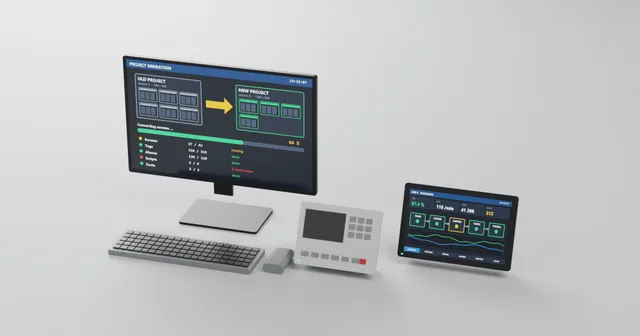
The documented OP27 migration is a three-step chain: OP27 to OP270 by a ProTool device-type change, OP270 to OP277 by migrating to WinCC flexible 2008 SP2, and OP277 to a Comfort panel by migrating to WinCC in TIA Portal. A failed conversion usually means a runtime-only file instead of an editable ProTool project, unsupported functions in the conversion report, or a transfer fault, and each has its own fix.
On this page
The OP27 (order number 6AV3627-1JK00-0AX0) is obsolete, and the documented route to a current panel is not a single jump. It is a three-step chain: OP27 to OP270 by changing the device type in ProTool, OP270 to OP277 by migrating from ProTool to WinCC flexible 2008 SP2, and OP277 to a Comfort panel by migrating from WinCC flexible to WinCC in TIA Portal. When a converted application "does not take" on an OP270, the failure sits in one of three places: the source file is not an editable project, the conversion report carries unsupported functions, or the transfer and runtime combination is incompatible. Identify the stage first; each branch has a different fix.
The migration chain and what each step needs #
Migration means translating an engineering project from one device target and software environment to the next. The ProTool conversion documentation states that the ProTool conversion function converts projects for graphical displays such as the OP 27 into projects for Windows-based systems, which is what makes the OP270 step possible.
| Step | Engineering tool | What you do |
|---|---|---|
| OP27 to OP270 | ProTool | Open the original ProTool project and change the device type to OP270 |
| OP270 to OP277 | ProTool to WinCC flexible 2008 SP2 | Run the WinCC flexible migration import |
| OP277 to Comfort panel | WinCC flexible to WinCC in TIA Portal | Migrate the WinCC flexible 2008 SP2 project into TIA Portal (documented in entry 58857225) |
The intermediate panels are not purchases. All three conversions run on the engineering station; only the final Comfort panel is bought. For the OP277 to KP700 migration, the source must be a WinCC flexible 2008 SP2 project, which is why step two cannot be skipped.
Failure at conversion: the source file problem #
A panel stores two different things: a runtime application the panel executes, and an editable engineering project that ProTool opens. A device backup or runtime file restores a panel but cannot be converted by changing the device type. If the OP270 conversion fails immediately, check what you actually have:
- An editable ProTool project opens in ProTool with screens, tags, communication configuration and resources visible. This converts.
- A backup or runtime file does not open as a project. ProTool has no documented path from a runtime file back to a project, so this does not convert.
If only a backup exists, recover the ProTool project from the engineering station, an archive or the machine builder before doing anything else. Rebuilding the application in the current tool is a different project, not a migration. The same discipline applies to any panel replacement: recover the project before converting.
Work on a copy at every step. Three consecutive conversions leave two intermediate project formats on disk; keep each one so an intermediate never becomes the only remaining source.
Failure at conversion: unsupported functions #
A device-type change alters the functions, screen geometry and operator controls available, so a conversion that completes proves only that the tool produced a project, not that it is operationally equivalent.
- Read the conversion report. Every rejected, modified or unsupported object is listed there. Correct the reported object, or accept the loss explicitly with a functional test.
- Compile the complete target project and clear every error. Classify each warning as fix or accepted change.
- Compare operator input assignments. The OP27 has hard keys; if a command's key assignment disappeared in the conversion, redesign that action on the target rather than treating the warning as cosmetic.
- Compare screens, tag references, alarms and recipes against a baseline record of the working OP27: screens, alarms, operator commands and PLC connections as they behave today.
If these checks pass and the application still will not load, stop editing screens and move to the transfer branch. Conversion defects and transfer faults need different corrections.
Failure at transfer or runtime #
Transfer is the download of the compiled application to the panel; PLC communication is the separate exchange of process data afterwards. A completed download proves nothing about the PLC connection.
| Observed result | What to read | Next action |
|---|---|---|
| Panel cannot be reached | Transfer mode, selected interface, cable, network path | Correct the transfer path, repeat the download |
| Panel reached but rejects the application | Configured device, panel identity, the compatibility message | Match the configured target to the panel and its software |
| Application starts, values stay dead | Connection diagnostics, PLC protocol, interface, tag addressing | Fix communication before testing commands |
| Values live, commands wrong | Button actions, key assignments, write destinations | Fix the application, repeat the functional test |
Read the panel's actual image version and the engineering tool's version from the device itself and use the exact diagnostic text; do not guess a version requirement. The same principle applies to matching a panel image to its project version on the final Comfort panel.
Planning the replacement panel #
Once the project chain is proven on the bench, size the target. The nominal 6-inch display of the OP27 says nothing about interchangeability. The Comfort Panels migration guide (entry 49752044) tabulates mounting cut-out, device depth and front dimensions of predecessor devices against Comfort panels, and covers the change from 4:3 to widescreen. Measure the enclosure opening and available depth, compare drawings rather than nominal sizes, and plan an adapter plate where the cut-out differs. The OP27 to KP700 programming overview covers the same chain end to end.
The decision #
- Runtime file only, no ProTool project: recover the project first; without it the application is rebuilt, not migrated.
- Editable project, conversion fails: fix or accept every item in the conversion report, then recompile.
- Compiles, transfer fails: work the transfer and compatibility table, not the screens.
- Compiles and transfers: complete steps two and three on the bench, test against the OP27 baseline, then buy the Comfort panel and size the cut-out from the migration guide's tables.
Prove all three conversions with the recovered project before the hardware order, and keep every intermediate project as a fallback.
Questions asked
We only have a backup from the panel, not the ProTool project. Can we still migrate?
Not directly. A device backup restores the runtime image to a compatible panel; it is not an editable engineering project, so ProTool cannot convert it. Recover the original ProTool project from an engineering station, archive or the machine builder. If none exists, the application has to be rebuilt in the current engineering tool, which changes the plan from migration to re-engineering.
Is the intermediate OP277 or OP270 panel needed as hardware?
No. The three steps are project conversions done on the engineering station; only the final Comfort panel is purchased as the replacement. The intermediate steps exist because each engineering tool imports only its immediate predecessor's project format.
Does the new Comfort panel fit the OP27 cut-out?
Not automatically. The Comfort Panels migration guide tabulates mounting cut-out, device depth and front dimensions of predecessor devices against Comfort panels, and it also covers the change from 4:3 to widescreen. Measure your enclosure opening and available depth, compare the drawings rather than nominal sizes, and plan an adapter plate where the cut-out differs.