Explainer
Why WinCC Professional cannot open a Comfort panel project
Short answer
WinCC Professional and WinCC Comfort are separate engineering steps aimed at different runtime targets. A project saved for a TP1200 Comfort Panel with WinCC Comfort V13 SP1 opens only on a workstation that has the WinCC Comfort V13 SP1 step installed and licensed; Professional alone does not substitute, and the message is not a network fault.
On this page
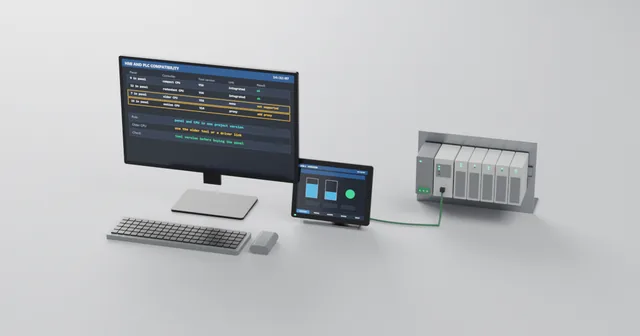
A project that was saved for a TP1200 Comfort Panel with WinCC Comfort V13 SP1 refuses to open on a workstation running WinCC Professional V13 SP1, and the dialog names the missing WinCC Comfort. Take that message literally: the project belongs to a different engineering step. WinCC Professional engineers PC runtime stations, the Comfort Panel device objects come with the WinCC Comfort step, and the portal will not load a project whose device objects it does not hold. The failure happens during the open, before any cable or network path to the panel matters, so no panel address or transfer setting can fix it. Install WinCC Comfort V13 SP1 on that workstation, confirm the TP1200 Comfort appears in the device catalog, and the project opens.
One portal, four engineering steps #
TIA Portal is one shell, but the WinCC products behind it are steps aimed at specific runtime targets. WinCC Basic engineers Basic Panels. WinCC Comfort engineers the panel families, including Comfort Panels such as the TP1200. WinCC Advanced adds engineering for the RT Advanced PC runtime. WinCC Professional adds engineering for the RT Professional PC runtime. The device catalog the portal offers, and the projects it can open, follow from the steps actually installed on the workstation, not from the name on the shortcut.
Runtime is the other half of the story. A TP1200 at runtime exchanges tags over Ethernet with a controller or with a WinCC Runtime Professional station, and that conversation does not depend on which engineering steps a separate workstation holds. Expecting one WinCC product to talk to any Comfort HMI mixes those two halves: talking happens between runtime stations, while opening and editing a project happens inside the engineering step that owns the device objects. If the runtime link between a Comfort panel and a Professional SCADA station is the real subject, article on Comfort panel access to a WinCC Professional SCADA station covers that side on its own.
What the open-time check compares #
When a project opens, the portal compares the engineering products recorded in the project against the products installed on the workstation. A project saved with WinCC Comfort V13 SP1 records the Comfort step and its Comfort Panel device objects. A workstation whose installed-product list holds only WinCC Professional fails that comparison, and the dialog says exactly that: WinCC Comfort is missing.
Record the exact dialog text and the operation that triggers it before changing anything. Opening, compiling and downloading exercise different layers, and only the first two can fail on missing engineering software. A dialog that names a missing product is upstream of every transfer setting, so changing the panel address or the workstation's interface at that point adds a second fault without touching the first.
The release must match the project #
The like-for-like open uses the same release on both sides: WinCC Comfort V13 SP1 for a project saved in V13 SP1. A workstation at a different release opens the project only through an upgrade, and an upgrade rewrites project data into the current format; upgrades can also fail on specific object types, as the V11 faceplate project that fails to upgrade to V13 SP1 shows. Keep an untouched copy of the project before opening it anywhere at a different release.
Family crossing is a migration, not an open #
The TIA Portal documentation groups Basic Panels, Panels, Comfort Panels and RT Advanced on one side and RT Professional on the other, and documents copying objects between the two families. A copy is not an open: screens, connections and tags are carried over and then adapted, and the result is a new project that behaves like its target. The rule runs in both directions, and what happens when a WinCC Professional V13 SP1 project is loaded onto Runtime Advanced shows the crossing from the PC side. Retargeting the TP1200 project to a PC runtime device to dodge the missing-Comfort dialog therefore replaces the project instead of repairing the workstation.
Worked example: the TP1200 case, read on both sides #
Inputs, read before touching anything: the project was created with WinCC Comfort V13 SP1 for a TP1200 Comfort; the workstation's installed-product list shows WinCC Professional V13 SP1; the failing operation is opening the project, and the dialog names WinCC Comfort.
- Compare releases first: both sides carry V13 SP1, so the release matches and no upgrade request is expected. The difference is the step, not the release.
- Install WinCC Comfort V13 SP1 from the V13 SP1 installation media. Both steps then sit on the same workstation, and the device catalog gains the Comfort Panels.
- Reopen the project. The expected result is a load with no upgrade prompt, and the TP1200 Comfort visible in the project's device configuration.
- Compile once. Compilation resolving for the Comfort Panel is the functional proof that the device objects are present.
- If a dialog now reports a missing authorization instead, the step is installed but the engineering entitlement is not being served. Resolve that through the vendor's licensing process; installing software never creates an entitlement, and the difference between RT and RC licenses and how a runtime key moves belongs to that separate, key-level work.
The decision for each case #
- Open or edit the TP1200 project: install the WinCC Comfort step in the project's release, V13 SP1 here, and make sure the engineering authorization is served. Professional alone does not open the project, and no network or transfer change helps.
- Run the same application on a PC instead of the panel: rebuild it for the RT Professional target. Copy the screens, reconfigure the tags and connections, and test on the PC runtime; do not expect the Comfort project to open as a Professional project.
- The panel is running and only its link to a Professional station is disturbed: engineering steps are irrelevant. Troubleshoot the network path, the driver and the data quality on the runtime side.
- The project targets a Unified panel: that is a different generation with its own engineering product, and why WinCC Professional cannot program a Unified Comfort panel covers that case.
Questions asked
How do you check which WinCC steps a workstation actually has?
Read the installed-product list rather than the desktop shortcut. The portal's own product information shows the installed products with their release, the TIA Portal setup inventory lists the selected WinCC steps, and the operating system's installed-program list shows each step as its own entry. A shortcut that says Professional proves only that Professional is present, not that the Comfort Panel device objects were installed with it.
Does the TP1200 panel itself need any change?
No. The fault lives on the engineering workstation during the project open, before any transfer begins. The panel keeps its project, its network address and its firmware, and a machine that is already running keeps running. Installing WinCC Comfort V13 SP1 on a workstation changes nothing on the panel; at most the panel receives a download when you later choose to send one.
Can a newer TIA Portal release open this V13 SP1 project instead?
A newer release opens an older project only by upgrading it, and the upgrade rewrites project data into the new format. Keep an untouched copy of the original first, because an upgrade that fails partway can leave the rewritten file in a state the original release no longer opens cleanly. The like-for-like path for this case stays WinCC Comfort V13 SP1 on the workstation.
Will the same screens run on WinCC Runtime Professional if the panel is retired?
Not by opening the project. Comfort Panels and RT Professional belong to different runtime families, so the application is rebuilt for the PC target: screens are copied across, tags and connections reconfigured, and the result tested on the PC runtime. That is a software migration with its own acceptance checks, separate from the question of which engineering step opens the original panel project.
What does the WinCC Comfort authorization cover that a Professional authorization does not?
It covers engineering for the panel families: selecting Comfort Panel devices in the catalog, compiling for them and downloading to them. Runtime keys for a PC station are a different authorization class. Before blaming the installation, check what the license management utility actually serves, because an installed step with no available authorization produces an open or compile failure that looks almost identical to a missing step.